
Laptop Touchpad Not Working? 12 Easy Ways to Fix It in Windows 10 & 11
A laptop touchpad can suddenly stop responding even when the rest of the computer works normally. Sometimes the touchpad is simply disabled, while other cases involve a keyboard shortcut, external mouse setting, corrupted driver, Windows update, or hardware problem.
If your laptop touchpad not working, the problem has started recently. Usually you do not need to replace anything immediately. Start with the simple checks below and move toward driver and hardware troubleshooting only if necessary.
This guide walks through 12 ways to fix touchpad problems on Windows 10 and Windows 11, including what to check in Windows Settings, Device Manager, BIOS/UEFI, and manufacturer-specific software.
Why Is My Laptop Touchpad Not Working? Common Causes
Before jumping into fixes, it helps to understand what typically causes a touchpad to stop working. Most cases fall into one of these categories.
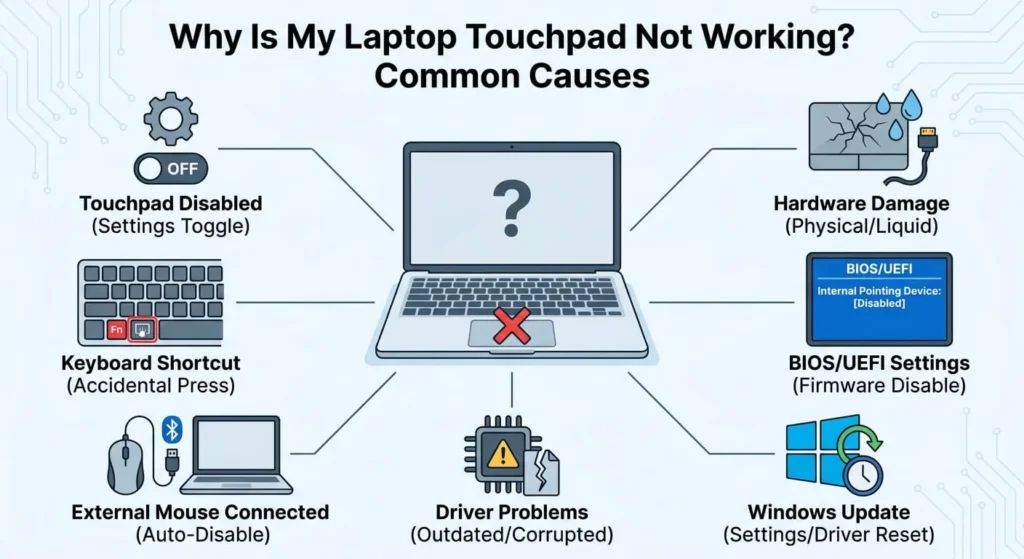
Touchpad Disabled
The touchpad toggle in Windows settings can get switched off accidentally, especially after a Windows update resets some device preferences.
Keyboard Shortcut
Many laptops have a dedicated key or key combination that toggles the touchpad on and off. A stray tap on this key is one of the most common reasons a touchpad appears to stop working out of nowhere.
External Mouse Connected
On several laptop models, Windows or the manufacturer’s software automatically disables the touchpad whenever an external mouse is plugged in or paired over Bluetooth.
Driver Problems
An outdated, corrupted, or missing touchpad driver can cause the touchpad to behave erratically or stop responding entirely, particularly after a system update.
Windows Update
A recent feature update or cumulative update can change driver behavior or reset touchpad settings, which is why timing matters when diagnosing the issue.
BIOS/UEFI Settings
On some laptops, the touchpad can be disabled at the firmware level. If it is turned off in BIOS, no Windows setting will bring it back.
Hardware Damage
Physical damage, liquid exposure, or a loose internal connector can also cause touchpad failure, and this is the one cause software fixes cannot resolve.
Before You Start: Quick Checks
A few quick checks can save you time before moving into deeper troubleshooting.
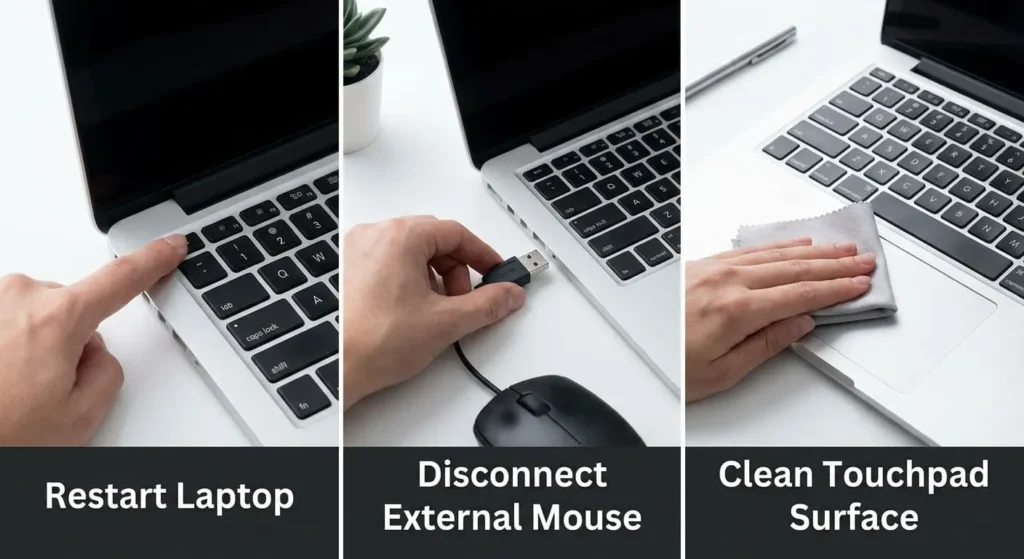
- Restart your laptop. A simple restart clears temporary glitches and reloads drivers, and it resolves the issue more often than people expect.
- Disconnect any external mouse. If a wireless or wired mouse is connected, unplug it or turn off Bluetooth to rule out an automatic disable feature.
- Clean the touchpad surface. Dust, moisture, or a greasy film can interfere with touch detection on some models.
- Test with an external mouse. If an external mouse also fails to move the cursor, the problem may be broader than the touchpad itself.
- Watch touchpad behavior at startup or in BIOS. If the touchpad does not work even before Windows loads, the cause is more likely hardware or firmware related rather than a Windows setting.
1. Turn On the Touchpad in Windows Settings
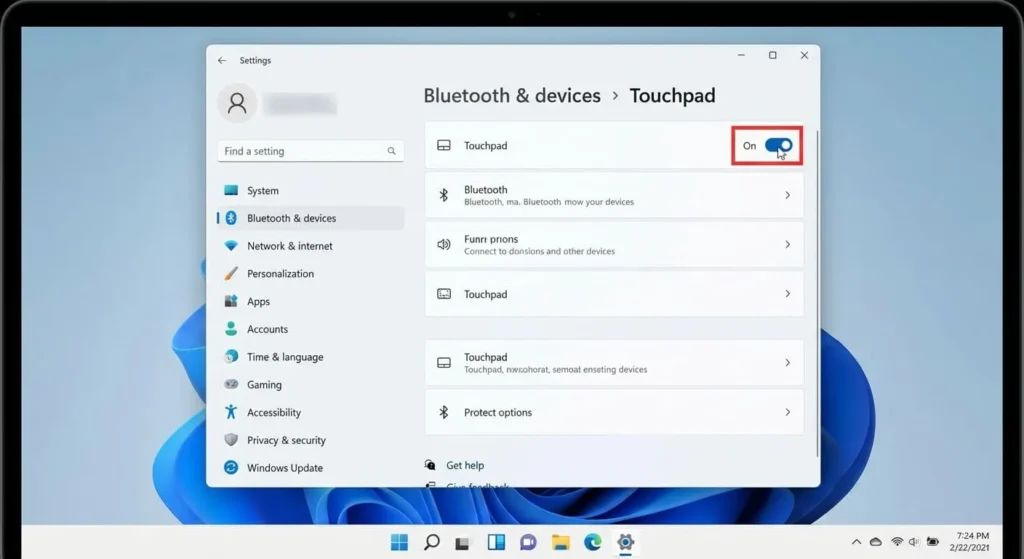
The touchpad has a master on/off switch inside Windows settings, and checking it first rules out the simplest possible cause.
Windows 11
- Open Settings (Win + I).
- Go to Bluetooth & devices, then select Touchpad.
- Make sure the toggle at the top is switched On.
- If it was off, turn it on and test the cursor.
Windows 10
- Open Settings, then go to Devices.
- Select Touchpad from the left menu.
- Confirm the touchpad toggle is set to On.
- If a related mouse is listed as connected, check whether it is disabling the touchpad automatically (see the setting below it).
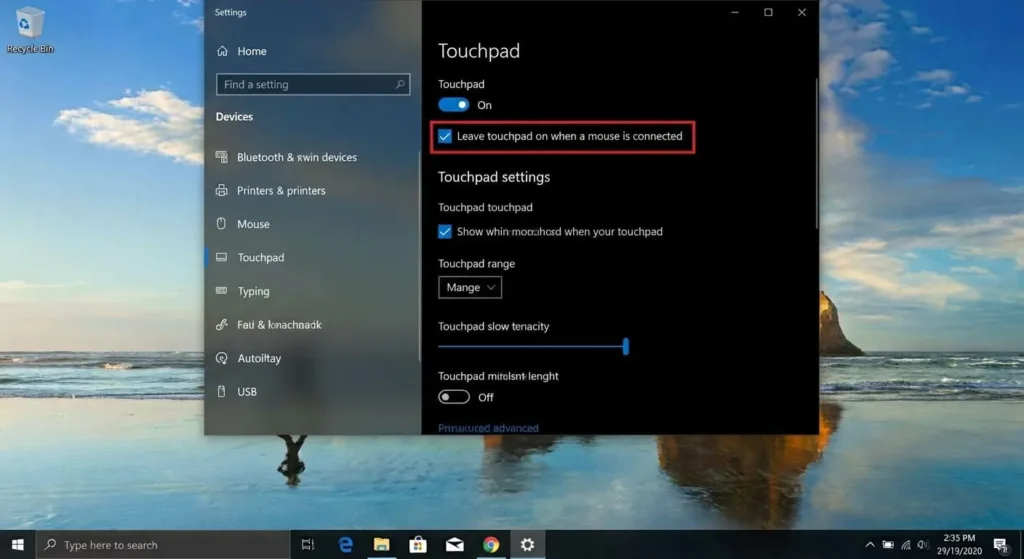
If the toggle was already on and the touchpad still does not respond, move on to the next fix rather than repeating this step.
2. Use the Touchpad Keyboard Shortcut
Most laptops assign touchpad toggling to a function key, often marked with a small touchpad icon. Pressing this key combination by accident, sometimes without noticing, is one of the most common reasons a touchpad stops working.

Touchpad Shortcut by Laptop Brand
| Brand | Typical Shortcut |
|---|---|
| Dell | Fn + F3 or Fn + F5 |
| HP | Fn + F6, or double-tap the top-left corner of the touchpad |
| Lenovo | Fn + F6, Fn + F8, or a dedicated touchpad key |
| Asus | Fn + F9 or Fn + F7 |
| Acer | Fn + F7 |
| MSI | Fn + F3 |
| Surface | No dedicated shortcut; controlled through Windows Settings |
The exact key varies by model, so look for a touchpad icon printed on the function key row. If pressing the shortcut does nothing, the touchpad may already be enabled and the cause lies elsewhere.
3. Disconnect Your External Mouse
Several manufacturers include a setting that automatically turns off the touchpad whenever a mouse is connected, which is meant to prevent accidental cursor jumps while typing. If you have been using an external mouse and the touchpad has been unresponsive since then, disconnect the mouse and check the touchpad again.
If the touchpad works once the mouse is removed, look in your laptop’s touchpad settings or manufacturer utility (such as Lenovo Vantage, Dell Peripheral Manager, or Synaptics/ELAN control panel) for an option like “disable touchpad when mouse is connected,” and turn it off if you want both devices active at once.
Conversely, if your touchpad works fine but your mouse is not working when reconnected, you may have a separate receiver or battery issue.
4. Check the Touchpad in Device Manager
Device Manager shows whether Windows can see the touchpad hardware at all, which helps separate a settings problem from a deeper driver or detection issue.
Enable the Touchpad
- Right-click Start and select Device Manager.
- Expand Mice and other pointing devices or Human Interface Devices.
- Right-click the touchpad entry and choose Enable device if it appears grayed out.
Find Hidden Touchpad Devices
- In Device Manager, click View, then select Show hidden devices.
- Look again under Mice and other pointing devices and Human Interface Devices for a touchpad entry that was previously hidden.
What If the Touchpad Isn’t Listed?
If no touchpad entry appears anywhere in Device Manager, even with hidden devices shown, the issue may involve a missing driver, a disabled BIOS setting, or a hardware fault. This scenario is covered in more detail later in this guide.
5. Update the Touchpad Driver
An outdated driver is one of the most frequent software causes of touchpad problems, especially after a Windows update changes underlying system files.
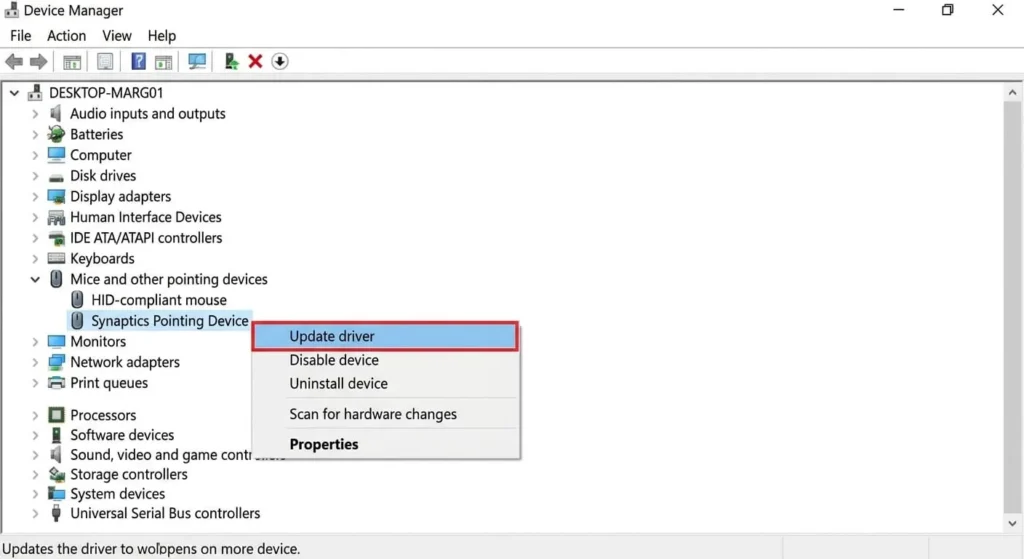
- Open Device Manager.
- Expand Mice and other pointing devices, right-click the touchpad, and select Update driver.
- Choose Search automatically for drivers and let Windows check for an update.
- If Windows finds nothing, check your laptop manufacturer’s support page for a dedicated touchpad or precision touchpad driver matching your exact model.
My Top Tip:
Before downloading anything, confirm your exact laptop model and Windows version. Installing a driver meant for a different model can cause more problems than it solves.
6. Reinstall the Touchpad Driver
If updating does not help, reinstalling the driver forces Windows to load a fresh copy, which can resolve corruption that an update alone will not fix.
- Open Device Manager and locate the touchpad under Mice and other pointing devices.
- Right-click the device and select Uninstall device.
- Restart your laptop. Windows will typically reinstall the driver automatically on startup.
- If the touchpad still does not appear, manually install the driver from your manufacturer’s support page.
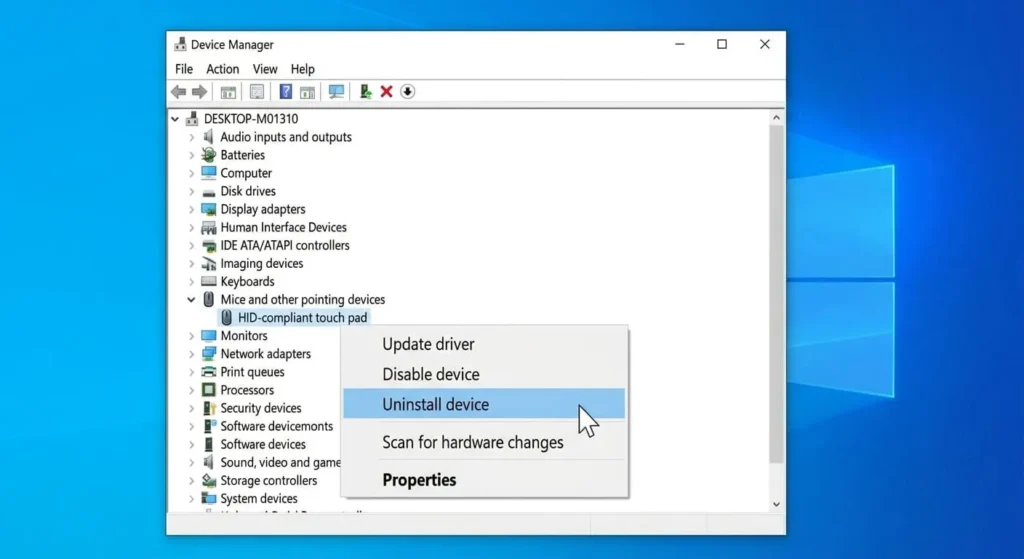
If reinstalling does not restore touchpad function, the problem is less likely to be the driver itself and more likely related to BIOS settings or hardware, both covered further down. For the official version of these steps, see Microsoft’s official troubleshooting steps for touchpad problems in Windows.
7. Roll Back the Driver After a Windows Update
If your touchpad stopped working immediately after a Windows update, a driver rollback can restore the previous, working version.
- Open Device Manager and right-click the touchpad device.
- Select Properties, then go to the Driver tab.
- If the Roll Back Driver option is available, select it and follow the prompts.
- Restart your laptop and test the touchpad again.
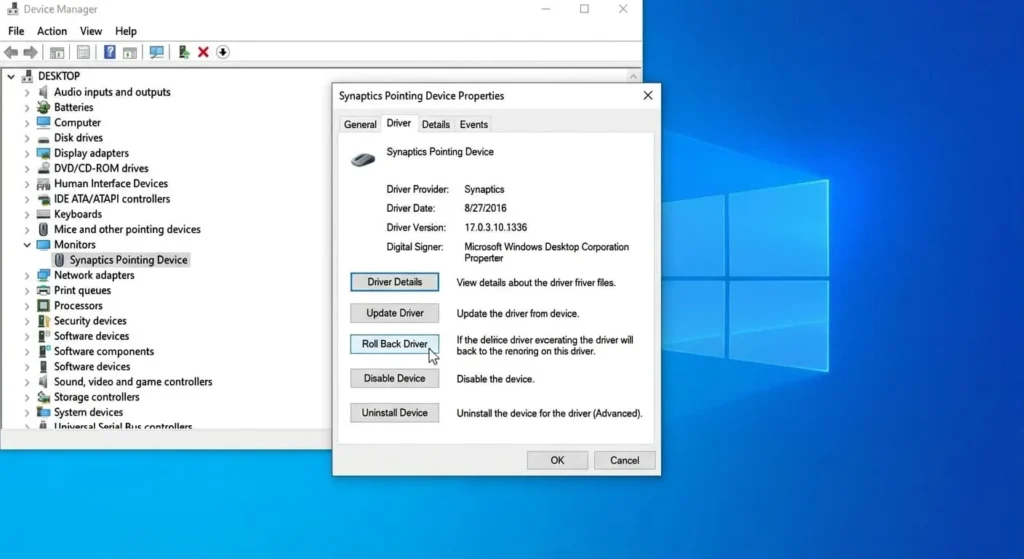
This option is only available if Windows saved the previous driver version, so it will not appear on every system.
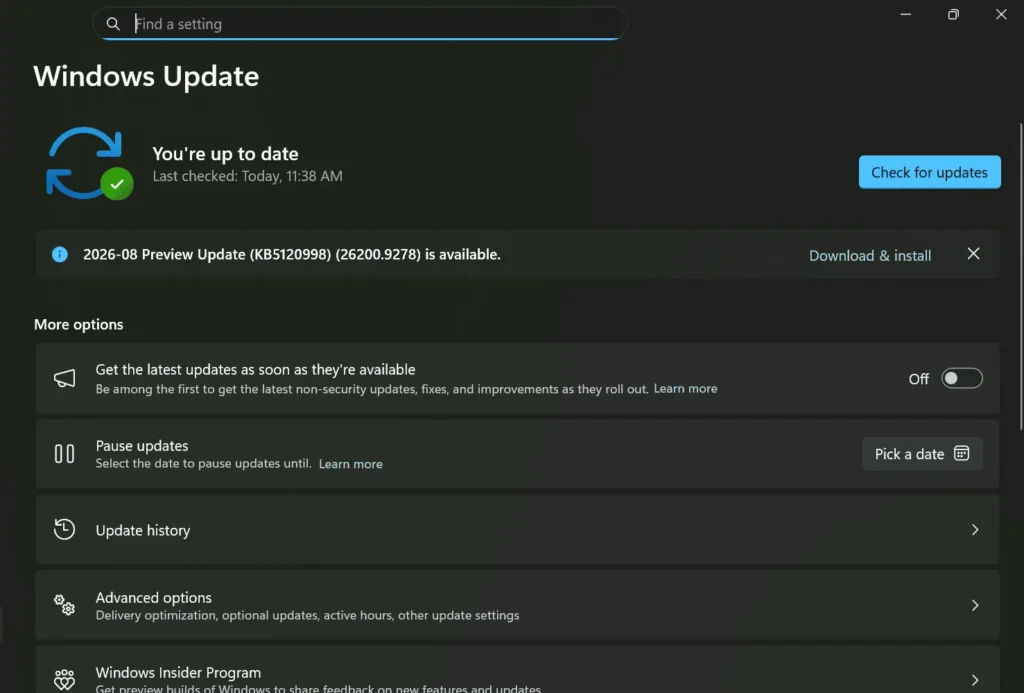
8. Check for Windows Updates
While a recent Windows update can sometimes cause touchpad issues, a pending update can just as often fix them, since manufacturers regularly push corrected drivers through Windows Update.
- Open Settings and go to Windows Update.
- Select Check for updates.
- Install any available updates, including optional driver updates listed under Advanced options or Optional updates.
- Restart your laptop after installing updates.
9. Check BIOS/UEFI Touchpad Settings
On some laptops, especially certain business and gaming models, the touchpad can be disabled directly in the firmware. If nothing in Windows restores touchpad function, this is worth checking.
- Restart your laptop and enter BIOS/UEFI setup, usually by pressing F2, F10, Esc, or Del during startup. The exact key depends on your manufacturer.
- Look for a section related to Internal Pointing Device, Touchpad, or sometimes listed under I2C or PS/2 Mouse.
- Make sure the touchpad option is set to Enabled.
- Save changes and exit, then check the touchpad once Windows loads.
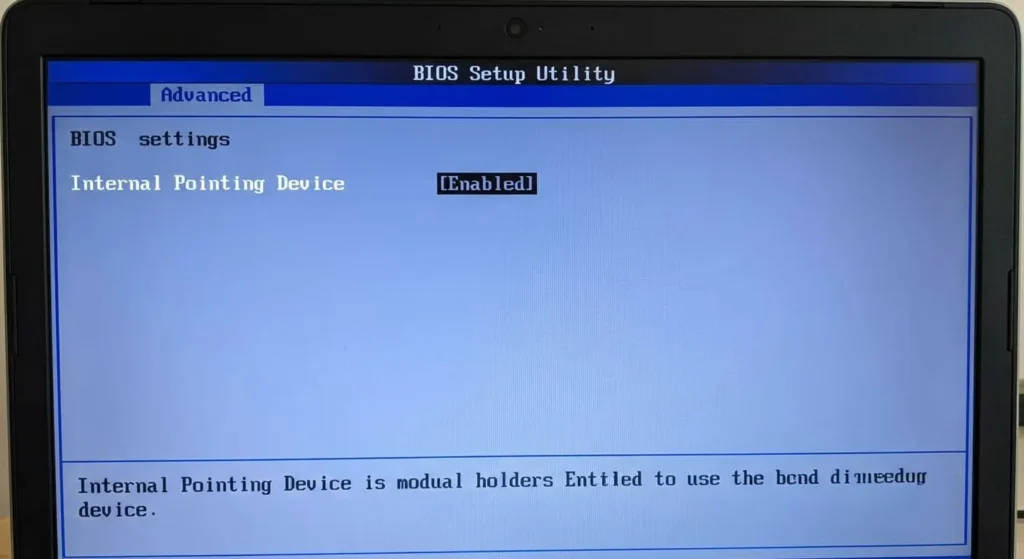
Your BIOS interface may look different depending on your laptop model, and not every laptop exposes a touchpad-specific option in firmware.
10. Check Your Laptop Manufacturer’s Settings
Many manufacturers ship additional touchpad controls through their own utilities, separate from Windows settings. These can override or conflict with Windows if misconfigured.
HP
HP laptops often include touchpad controls inside HP Support Assistant or under Mouse Properties in Control Panel, where a separate on/off switch may exist. For driver downloads specific to your model, HP Support is the most reliable source.
Dell
Dell systems may include a Dell Touchpad tab in Mouse Properties with sensitivity and gesture settings, along with Dell Peripheral Manager on newer models. If neither shows the option you need, Dell Support lists the correct touchpad driver for your exact model.
Lenovo
Lenovo laptops commonly use Lenovo Vantage for touchpad settings and driver updates. Checking Lenovo Vantage or Lenovo Support for a dedicated touchpad driver is often the fastest path to a fix on these devices.
ASUS
ASUS laptops may include a MyASUS or ASUS Smart Gesture utility with its own touchpad toggle and gesture configuration.
Acer
Acer devices sometimes bundle touchpad controls with Acer Care Center, in addition to the standard Windows and Device Manager options.
MSI
MSI laptops, particularly gaming models, may list touchpad settings inside MSI Center or Dragon Center rather than only in Windows Settings.
Surface
Surface devices with a Type Cover rely on Windows Settings for touchpad configuration rather than a separate manufacturer utility, so if the touchpad is unresponsive, focus on Windows Settings, Device Manager, and the Type Cover connection itself.
11. Fix Specific Touchpad Problems
Some touchpad issues are not a total failure but a specific behavior that is not working correctly. These often point to a particular setting or driver conflict.
Cursor Won’t Move
Confirm the touchpad is enabled in Windows Settings and Device Manager, then try the driver update and reinstall steps above if the toggle is already on.
Cursor Moves But Won’t Click
This usually points to a gesture or tap-to-click setting rather than a hardware fault. Check that Tap with a single finger to single-click is enabled under Touchpad settings.
Left-Click Not Working
Test whether tapping the touchpad still registers as a click even if the physical button area does not. If tapping works but the button does not, this can indicate a physical button fault rather than a software issue.
Right-Click Not Working
Check the Tap with two fingers to right-click and Press the lower right corner to right-click options in touchpad settings, since one of these is usually the intended right-click method on modern touchpads.
Scrolling Not Working
Look for the scrolling option in touchpad settings, usually listed as Drag two fingers to scroll, and confirm it is turned on and not set to an unusually low sensitivity.
Gestures Not Working
Multi-finger gestures depend on precision touchpad drivers. If gestures stopped working after an update, updating or reinstalling the driver, as described earlier, often restores them.
Cursor Jumping
Unexpected cursor jumps are frequently caused by palm contact while typing. Lowering touchpad sensitivity or enabling palm rejection in touchpad settings can reduce this.
Touchpad Freezing
Intermittent freezing that clears after a restart often points to a driver conflict. If freezing is frequent, check Device Manager for a yellow warning icon next to the touchpad entry.
Cursor Disappearing While Typing
Many laptops disable the touchpad briefly while typing to prevent accidental input. This is expected behavior and is usually adjustable under a setting like Touchpad sensitivity while typing.
12. What If the Touchpad Is Missing From the Device Manager?
If the touchpad does not appear anywhere in Device Manager, even after showing hidden devices, the problem may be deeper than a simple Windows setting.
Show Hidden Devices
Confirm you have already checked View > Show hidden devices in Device Manager, since some touchpad entries only appear once this option is enabled.
Scan for Hardware Changes
- In Device Manager, right-click your laptop’s name at the top of the list.
- Select Scan for hardware changes and wait for Windows to search again.
Check I2C HID
On many modern laptops, the touchpad communicates through an I2C HID device rather than a traditional PS/2 or USB connection. If this component is missing or disabled, expand Human Interface Devices and look for an entry related to I2C HID Device, then update or reinstall it the same way as the touchpad driver.
Reinstall Chipset/Serial IO Drivers
The I2C touchpad connection depends on your laptop’s chipset and Serial IO drivers. Reinstalling these from your manufacturer’s support page, in addition to the touchpad driver itself, can restore detection when the touchpad has disappeared entirely.
How to Tell If Your Touchpad Is a Hardware Problem
Once software fixes have been ruled out, it helps to know the signs that point toward hardware rather than a driver or setting.
Signs of Software Failure
- The touchpad appears in Device Manager, even with an error.
- The problem started right after a Windows update or driver change.
- An external mouse works normally.
- The issue is intermittent rather than constant.
Signs of Hardware Failure
- The touchpad does not appear in Device Manager at all, even after scanning and checking hidden devices.
- There is visible physical damage, warping, or a recent liquid spill.
- The touchpad does not respond even in BIOS, before Windows loads.
- Specific areas of the touchpad never register input, while others do.
When to Get Professional Repair
If the touchpad fails to respond in BIOS, shows no driver activity at all after reinstalling chipset and I2C drivers, or coincides with known liquid exposure or a drop, professional repair is the more realistic next step rather than continued software troubleshooting.
What to Do If None of These Fixes Work
If you have worked through settings, keyboard shortcuts, drivers, BIOS, and manufacturer utilities without success, the most efficient next step is contacting your laptop manufacturer’s support team directly with your exact model number. They can confirm whether a known issue exists for your device or whether the touchpad needs physical inspection.
How to Use Windows Without a Touchpad
While you troubleshoot or wait for repair, you can still use your laptop comfortably.
- Connect an external mouse, wired or Bluetooth, as an immediate workaround.
- Enable Mouse Keys under Settings > Accessibility > Mouse, which lets you control the cursor using the numeric keypad.
- Use keyboard navigation, including Tab, arrow keys, and Alt shortcuts, to move through most Windows menus and applications without a pointer at all.
Frequently Asked Questions
Here are most common Frequently Asked Questions about laptop touch issue.
Conclusion
Most cases of a laptop touchpad not working come down to a disabled setting, an accidental shortcut, or a driver that needs updating or reinstalling, and working through these first will resolve the majority of situations. If the touchpad still does not respond after checking Windows settings, Device Manager, BIOS, and your manufacturer’s utility, treat it as a likely hardware issue and reach out to the manufacturer’s support team with your exact model number. Testing with an external mouse along the way will help you keep working while you narrow down the cause.
Also Read: How Technology Giants Shape Global Security: The Complete Guide

2 Comments