Why Is There a Bright Spot on My Phone Screen? Causes & Fixes
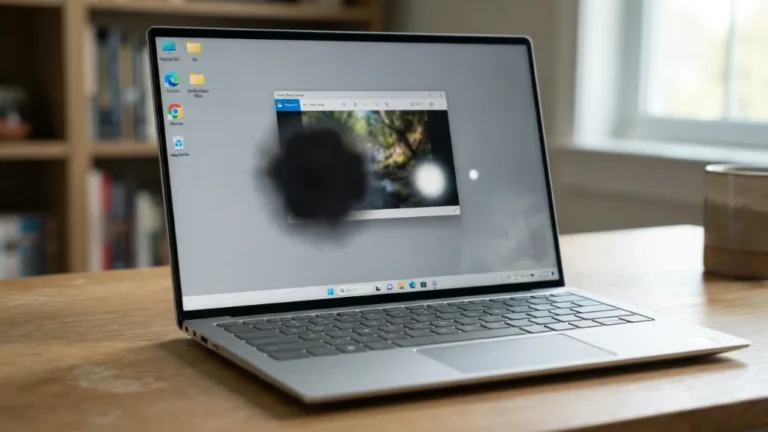
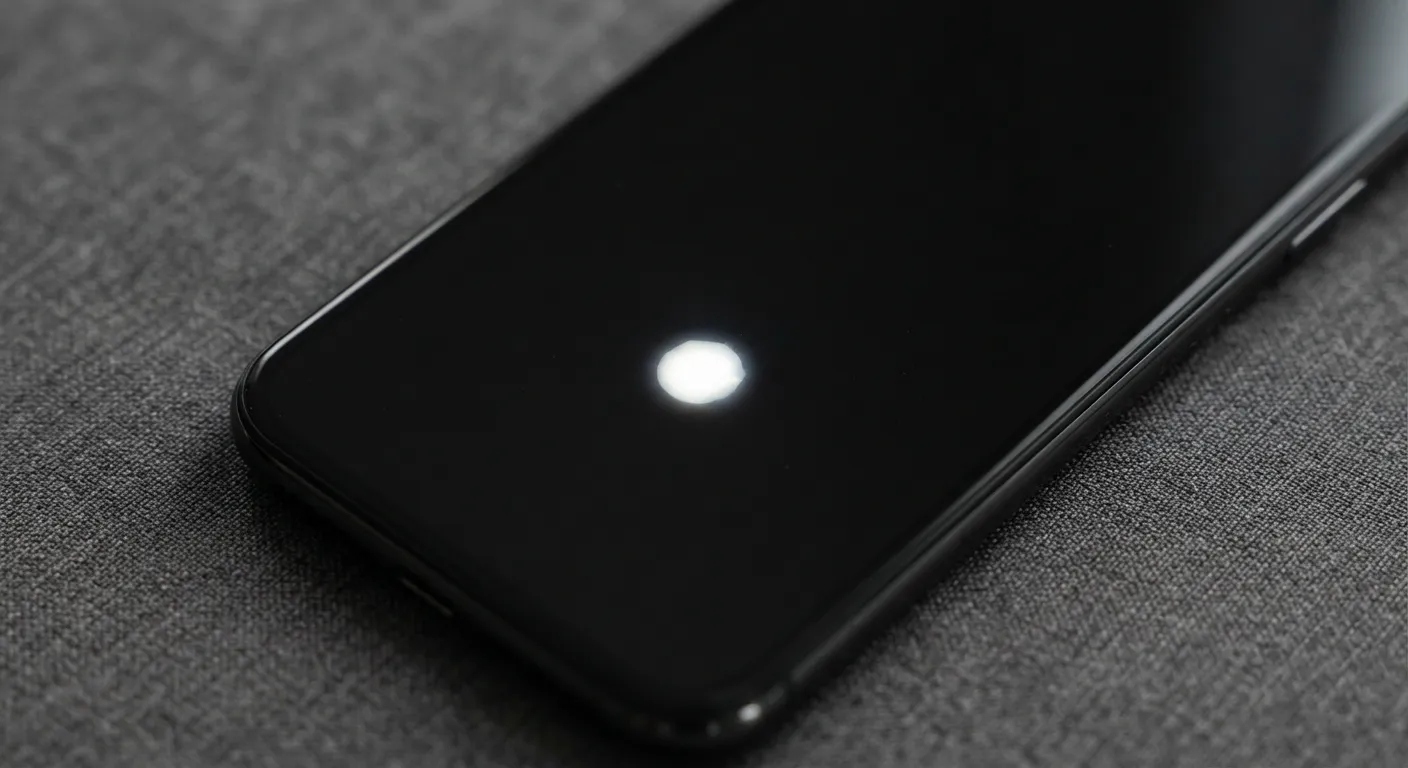
A bright spot on your phone screen may appear as a small white dot, glowing patch, or unusually bright area. It can remain visible while you use the device, even when the content on the screen changes. Common causes include a stuck or damaged pixel, pressure on the display, or a backlight problem. In some cases, damage to the screen layers can also create a persistent bright spot.
If you are wondering, why is there a bright spot on my phone screen, start by identifying the possible cause. The spot may result from a software issue or physical display damage. This guide covers common causes, simple tests you can perform at home, and safe ways to fix the problem. You’ll also learn how to troubleshoot bright spots on both iPhone and Android phones.
Quick Answer
A bright spot on a phone screen is usually caused by a display problem. Common causes include pressure damage, a stuck pixel, LCD backlight leakage, or physical impact. Moisture and problems with the screen protector can also create unusual bright areas.
The fastest way to narrow down the cause is to remove the case and screen protector first. Then, restart the phone and check the spot against solid-color backgrounds. You can also take a screenshot to help identify the source. If the spot stays in the same physical location but does not appear in the screenshot. The display hardware is likely causing the issue.
What Does a Bright Spot on a Phone Screen Look Like?
Not every white dot you see is a damaged pixel. If the dot moves with your finger or appears only when you touch the screen, it may be an Android accessibility feature. It could also be a developer option rather than a physical display defect.
A bright spot on a phone screen usually appears as an area that looks whiter or brighter than the surrounding display. Depending on the type of screen damage, it may appear as a white dot, circular patch, bright area, or group of light spots. Its size and shape can vary depending on the underlying display problem.
You may notice the spot more clearly when viewing a solid white, black, red, green, or blue background. If the spot stays in the same physical location, it is likely a display hardware issue. This remains true regardless of what appears on the screen.
Some users describe the problem as a white spot on your phone, while others notice a larger bright area. A small pixel defect and a damaged LCD layer can look similar at first, but they require different solutions.
If you recently dropped your phone, placed pressure on the display, exposed it to moisture, or noticed the spot after an impact. The physical screen damage becomes more likely.
Common Causes of a Bright Spot on a Phone Screen
Most bright spots trace back to one of these causes.
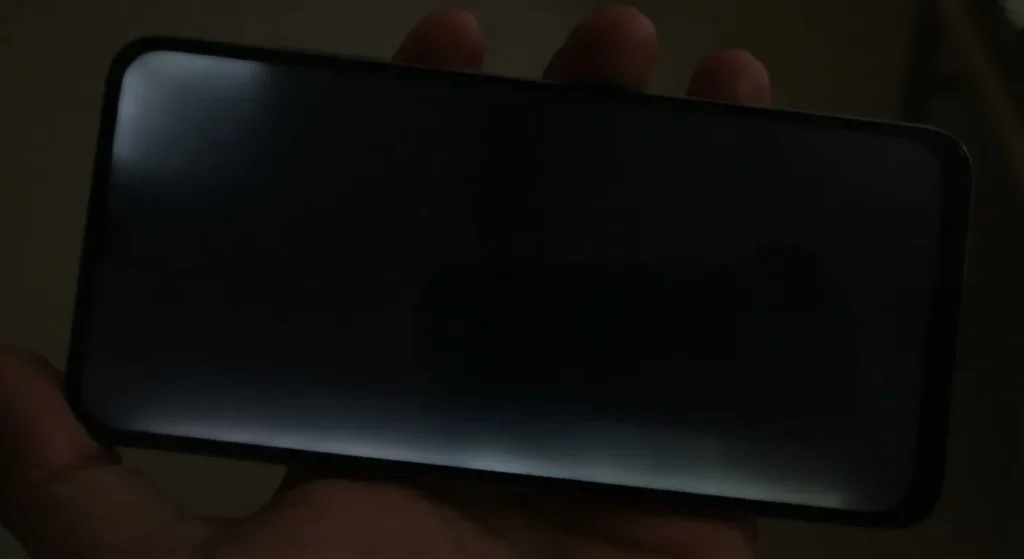
Backlight Bleed on LCD Screens
Backlight bleed is more commonly discussed as edge/corner light leakage on LCD panels, rather than a generalized cause of any white spot. Phones with LCD displays use a separate backlight behind the panel, much like desktop displays.
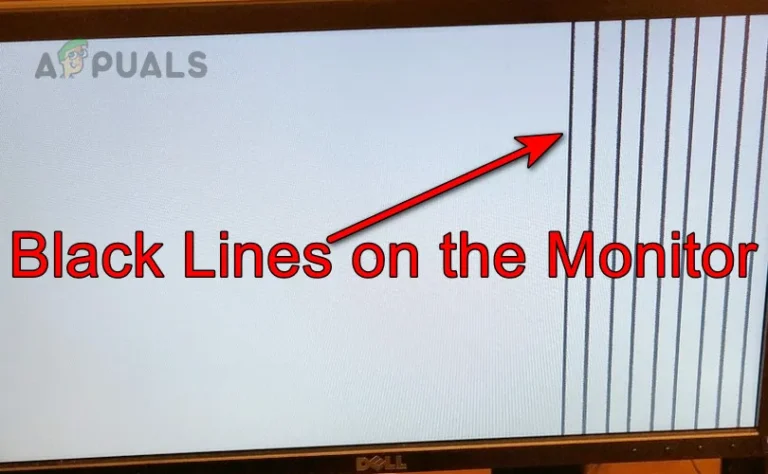
While a failing desktop panel might show a black line on the monitor, a phone with an unevenly sealed backlight will let light leak through in specific areas, usually near an edge or corner. If that backlight isn’t sealed evenly.
Light can leak through in specific areas, usually near an edge or corner, and it becomes far more noticeable on dark backgrounds or in a dim room. This is a hardware trait of the panel itself rather than a setting, and it’s one of the most common reasons for a white spot on an LCD Android phone.
Pressure Marks on OLED and AMOLED Screens
OLED and AMOLED panels don’t use a backlight, so a bright spot here usually comes from something else: pressure. Sitting on your phone or packing it tightly in a bag can put pressure on the screen. Firm pressure can damage the display layer underneath. This may cause a lighter patch or faint blob on the screen. It may be more visible against solid colors. Some temporary marks may fade after the pressure is removed. However, a bright spot that remains can indicate permanent screen damage. Do not assume that a spot will disappear on its own.

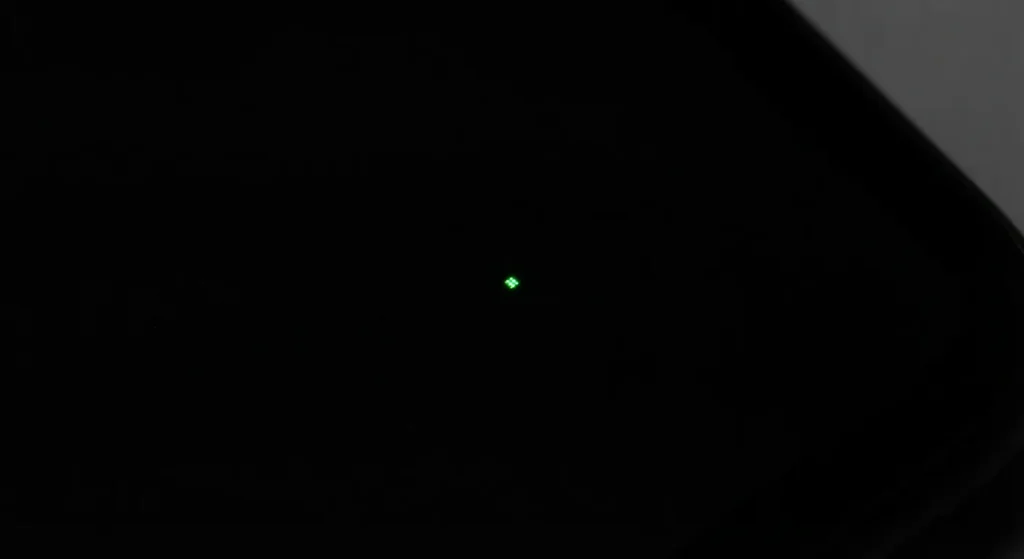
A Stuck or Dead Pixel
A single stuck pixel appears as a small, fixed point of red, green, blue, or white that doesn’t change no matter what’s on screen. It’s not a glow so much as a pinprick of color. Stuck pixels are a manufacturing or panel-wear issue and are usually isolated to one tiny spot rather than a broader patch.
If you suspect you have one, you can use an online dead pixel test to cycle through solid colors and quickly spot any isolated pixels on your display.
A Screen Protector or Case Issue
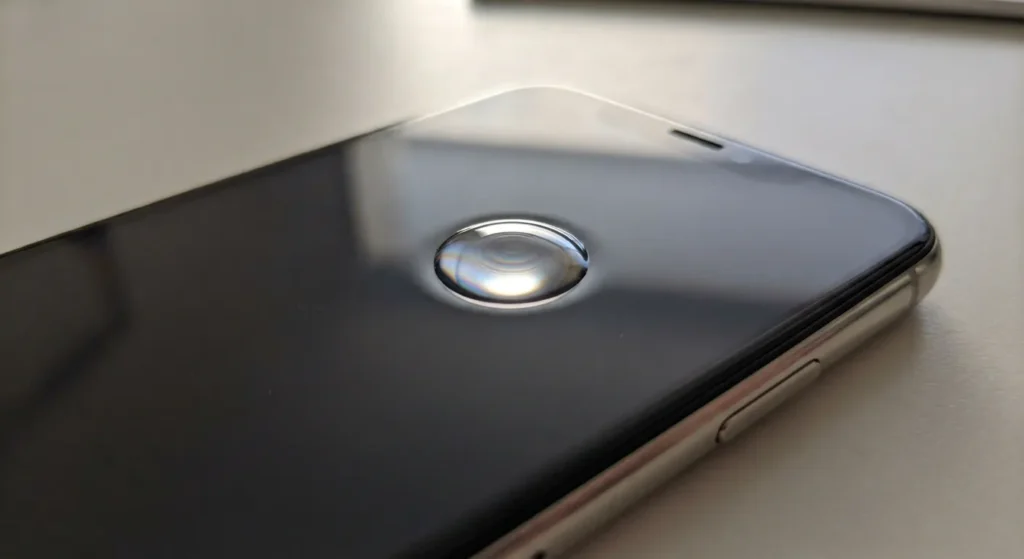
An air bubble under a tempered glass protector can reflect light and look like a bright spot. This is more noticeable under direct light or from certain angles. A poorly fitted case can also press against the screen edges. This pressure may create a light patch near the area where the case grips the phone.
Physical Impact or Internal Damage
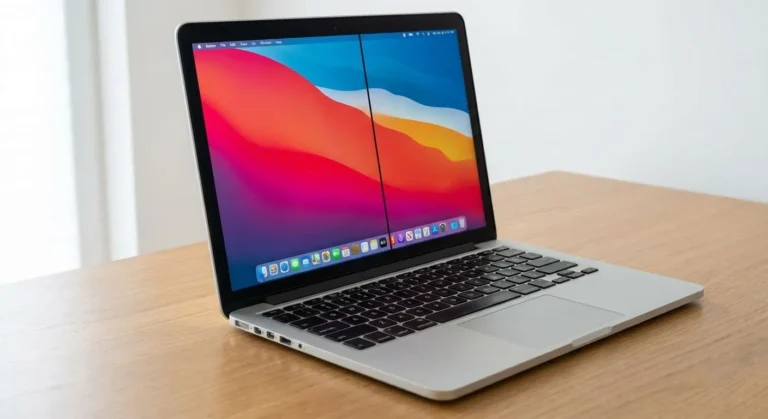
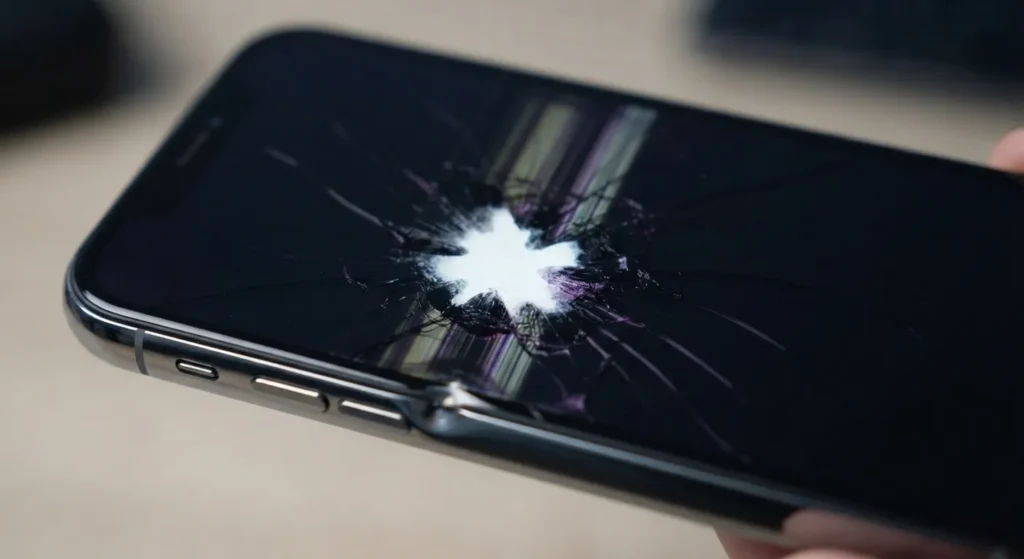
A drop can crack the internal display layers without cracking the visible glass. When this happens, the damage may appear as a bright, dark, or discolored spot near the impact area. You may also notice screen flickering, a black line across the display, or part of the screen not responding to touch.
Heat, Cold, or Liquid Exposure
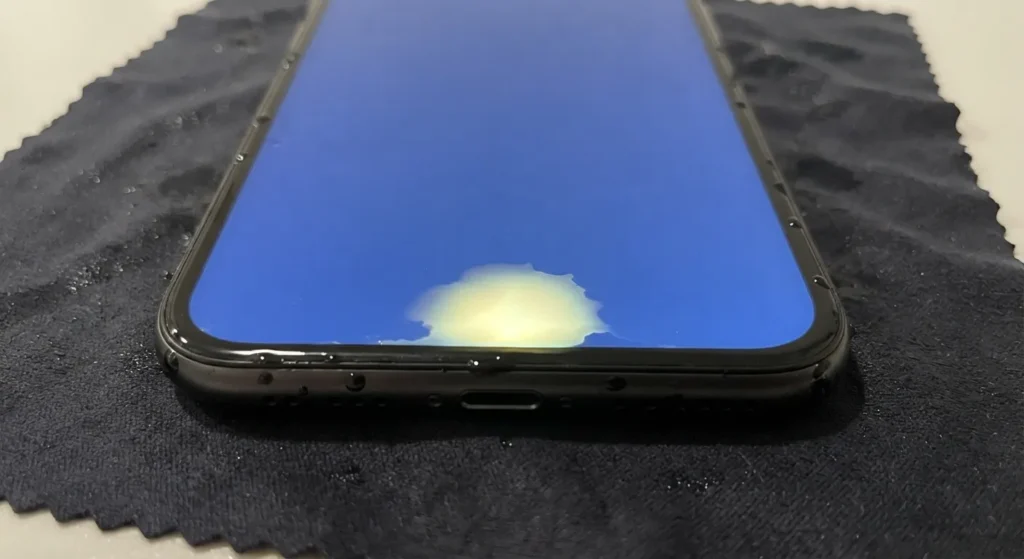
Leaving your phone in direct sunlight or a hot car can stress the display. Extreme cold can also affect the screen. The bright spot may disappear once the phone returns to a normal temperature. Liquid exposure is more serious. Moisture can damage the display connector or panel. It can also cause corrosion. If a bright or discolored spot appears after the phone gets wet, the display may be damaged.
Software and Brightness Settings
Less often, what looks like a bright spot is actually a brightness or color-adjustment feature reacting unevenly, particularly right after a software update. This is the least common cause but the easiest to rule out, which is why it’s worth checking first.
Swollen Battery
A swollen battery can push against the display from inside the phone and create a bright or unusually illuminated area. This is more concerning than a normal pixel defect because battery swelling can also cause the screen or back cover to lift away from the frame.
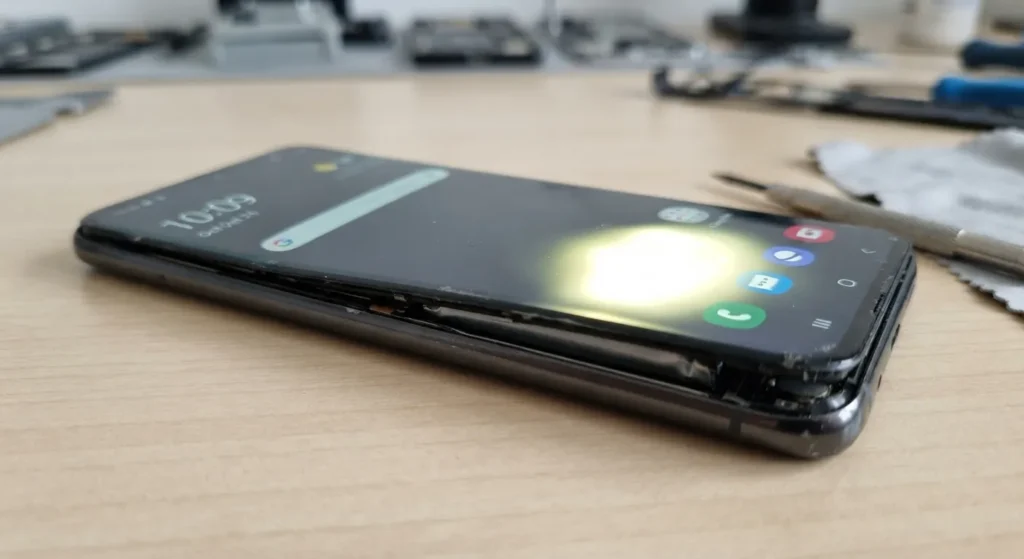
Look for other signs such as a bulging phone, a display that is separating from the frame, an unusually hot device, or a back cover that no longer sits flat.
If you suspect the battery is swelling, do not press the screen back into place or continue charging the phone. Power it off if it is safe to do so and have it inspected by a qualified repair professional.
How to Tell If a Bright Spot Is a Hardware or Software Problem?
Before trying any fixes, a few quick checks will tell you which direction to go.
- Does it move or change? A true bright spot from backlight bleed, pressure, or panel damage stays in the same physical location regardless of what app is open. If the “spot” moves or disappears depending on content, it’s more likely a display effect or a reflection.
- Did it start after something specific? A spot that appeared right after a drop, a hot car, a dunk in water, or removing a screen protector points strongly toward a physical cause rather than software.
- Does a restart change anything? Restarting won’t fix a hardware issue, but it will rule out a temporary software glitch if the spot disappears.
My Top Tip: Check the spot with the screen protector and case removed before assuming it’s a display fault. A surprising number of “bright spot” reports turn out to be a bubble under a cheap screen protector rather than a problem with the actual display.
Does It Appear in a Screenshot?
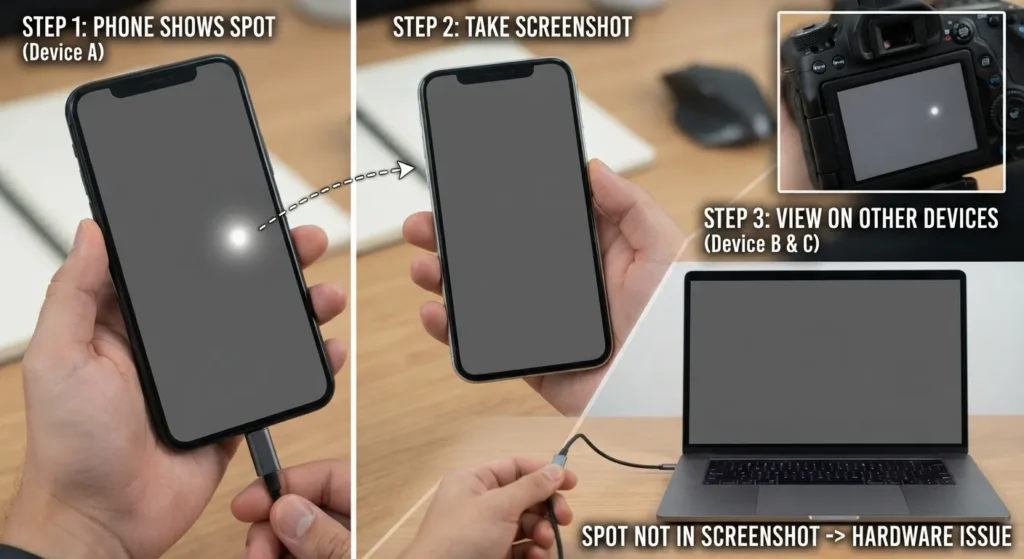
Take a screenshot while the bright spot is visible, then open the screenshot on another phone, computer, or display.
If the bright spot appears in the screenshot, the phone is generating the visual element through software, an app, an overlay, or displayed content.
If the screenshot looks normal on another device but the physical spot is still visible on your phone, the problem is more likely related to the phone’s display hardware.
A screenshot captures the image being generated by the phone, not defects that exist physically inside the display panel.
Quick Diagnosis Table
| Behavior | Likely Cause |
|---|---|
| Spot stays in the same place on every screen | Panel or backlight issue |
| Spot appears only in one app | Software or app rendering |
| Spot disappears after removing screen protector | Trapped light or bubble |
| Spot appears after a drop or pressure | Physical or panel damage |
| Phone feels puffy near the spot | Possible battery swelling |
How to Test Your Phone Screen for a Bright Spot
Before assuming that a bright spot means your phone screen is damaged, test the display against several solid-color backgrounds. Different colors can make different display problems easier to see, including backlight leakage, pressure marks, uneven illumination, stuck pixels, and dead pixels.
For the most accurate result, clean the screen, remove the phone case if it is pressing against the display, and inspect the screen in a dimly lit room. Keep the screen brightness high enough to see subtle differences, but avoid direct reflections from lamps or windows.
You can also use our Screen Test Online tool to display solid colors and check your phone’s display for bright spots and pixel abnormalities.
Black Screen Test
A black screen is particularly useful for checking backlight leakage and uneven illumination on LCD displays.
Open a completely black image or screen and inspect the display from different angles. Look especially closely around the edges and corners.
Watch for:
- A white or gray glow around the edges
- Bright patches in the corners
- Uneven areas that are noticeably lighter than the rest of the screen
- Localized light leaking through a dark area
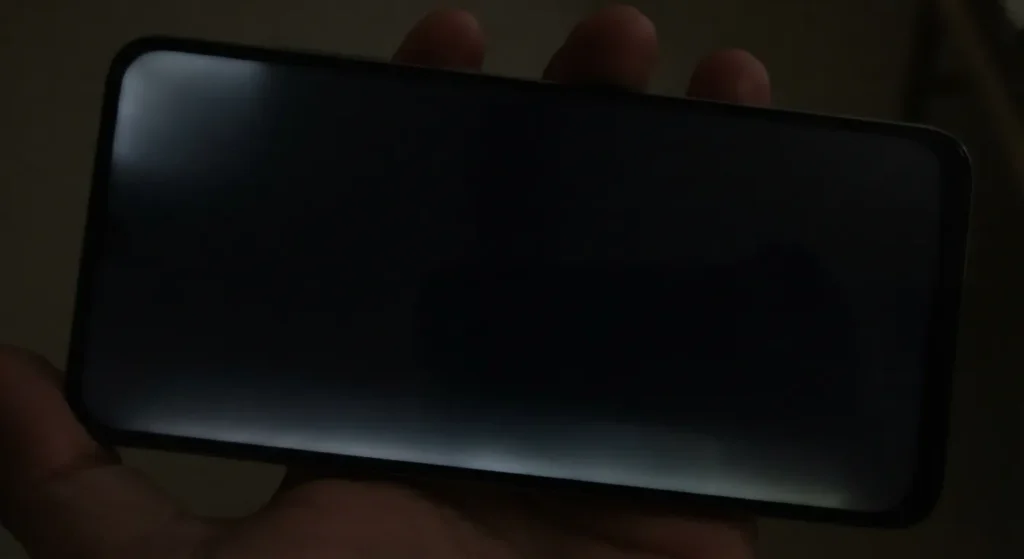
LCD phones use a separate backlight behind the display panel, so light leakage can become much easier to notice when the screen is displaying black.
If the bright area is concentrated near an edge or corner and remains visible on a black background, backlight leakage or another LCD panel issue is possible.
However, not every faint glow indicates a serious defect. Some LCD panels naturally have minor variations in illumination, so compare the affected area with the rest of the screen before deciding that the panel is damaged.
White Screen Test
A completely white screen is useful for finding white spots, pressure marks, uneven display areas, and certain pixel abnormalities.
Display a solid white background and look closely at the location of the bright spot.
Check whether the area appears:
- Brighter than the surrounding screen
- Yellowish or gray
- Circular or irregular in shape
- Larger than a single pixel
- Surrounded by an area of uneven brightness
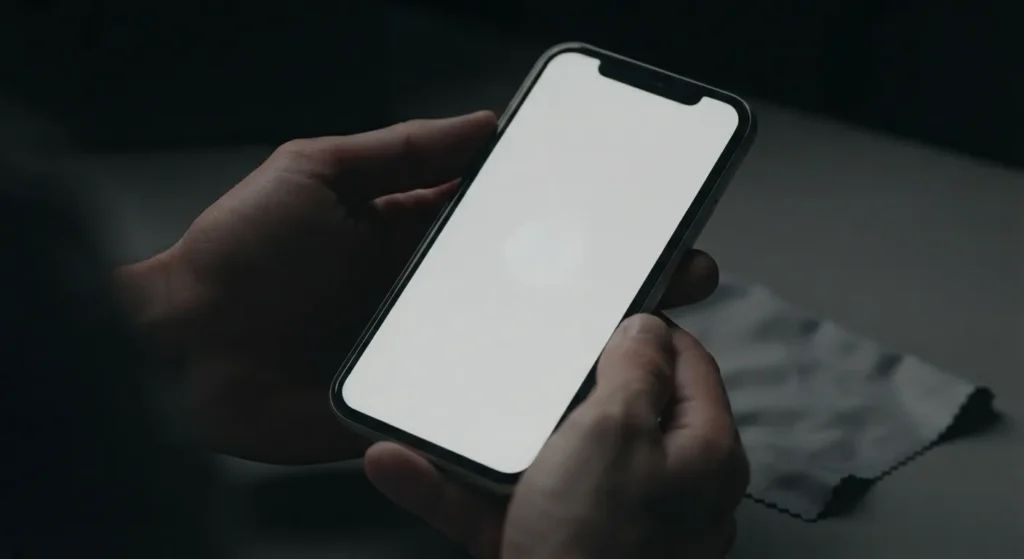
A pressure mark may appear as a lighter or slightly discolored patch, particularly when the display is showing a uniform color.
A white screen can also make small pixel defects easier to distinguish from larger display problems. A defect that looks like a tiny point is more likely to involve an individual pixel or sub-pixel, while a larger diffuse patch suggests a display-layer or panel issue.
Gray Screen Test
A gray screen test is useful for detecting subtle display uniformity problems that may be difficult to notice on pure black or white backgrounds.
Display a medium-gray background and inspect the entire screen.
Look for:
- Small bright patches
- Darker areas
- Uneven brightness
- Clouding or blotchy areas
- Vertical or horizontal bands
- Areas that appear slightly different from the surrounding display

Gray is particularly useful because it provides a relatively neutral background for comparing different parts of the panel. A display defect that is barely visible on a white or black screen may become more obvious against gray.
If the same bright spot remains in exactly the same physical location across black, white, and gray backgrounds, a hardware-related display problem becomes more likely.
RGB Screen Test
A RGB (red, green, and blue) screen test can help determine whether the problem is an individual pixel or sub-pixel defect.
Display solid red, green, and blue backgrounds one at a time and inspect the affected area closely.
These tests are useful for identifying:
- Stuck pixels
- Stuck red, green, or blue sub-pixels
- Tiny permanently illuminated points
- Isolated pixel abnormalities
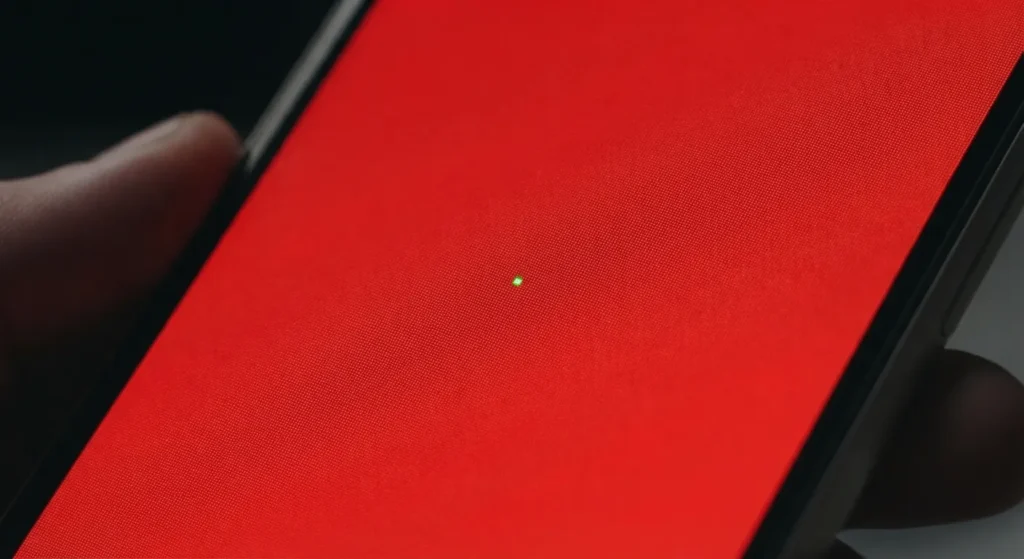
For example, if one tiny point remains a different color while the rest of the screen changes, it may indicate a stuck pixel or stuck sub-pixel.
A defect that is visible on only one or two colors can provide additional clues about which sub-pixel is affected. In contrast, a larger bright patch covering several pixels is unlikely to be a single stuck pixel. It may indicate damage to the display panel or its layers.
What the Test Results Mean
Use the pattern of the defect to narrow down the likely cause:
| What you see | Possible cause |
| Bright glow around an LCD edge or corner on a black screen | Backlight leakage |
| Larger bright or discolored patch | Pressure or panel damage |
| Tiny fixed colored dot | Stuck pixel or sub-pixel |
| Tiny black point that stays inactive | Dead pixel |
| Bright area that changes with the screen content | Software, reflection, or displayed content |
| Spot visible across multiple solid colors | Possible physical display defect |
| Spot disappears after removing the screen protector | Protector or trapped air/bubble |
| Spot appeared after a drop or pressure | Internal display damage |
These tests cannot always identify the exact failed component, but they can help determine whether the problem is likely related to the display hardware.
Bright Spot vs. Stuck Pixel vs. Dead Pixel
The size and behavior of the defect are useful clues.
A stuck pixel is usually a very small point that remains illuminated in one color, such as red, green, blue, or white. It does not change normally when the surrounding image changes.
A dead pixel generally appears as a tiny black or inactive point because the pixel is no longer producing light correctly.
A bright spot is usually larger or softer than an individual pixel. It may look like a glowing patch, white area, or uneven section of the screen and can be associated with pressure damage, backlight leakage on LCD panels, or other panel problems.
If the affected area covers multiple pixels or looks irregular rather than like a single sharp dot, it is less likely to be an isolated pixel defect.
Quick Phone Screen Test
For a quick diagnosis, run these four tests:
- Black: Check for edge or corner glow and backlight leakage.
- White: Look for bright spots, pressure marks, and uneven areas.
- Gray: Look for subtle uniformity problems and cloudy patches.
- Red, green, and blue: Look for stuck pixels and stuck sub-pixels.
You can also run our Screen Flicker Test to check for noticeable flickering or brightness fluctuations that may be easier to spot during a dedicated test.
If the same area looks abnormal in several tests, the problem is likely hardware-related. This is especially true after a drop, pressure, heat, or liquid exposure.
However, If the defect is a single tiny pixel, it may be an isolated pixel defect. If the spot is large or spreading, the screen may have a hardware problem. Look for lines, flickering, discoloration, or touch issues. If you notice these signs, consider getting the phone professionally inspected.
Does This Happen on iPhone and Android Phones?
Yes. Bright spots can occur on both iPhone and Android devices, although the underlying cause depends on the display technology used by the particular model.
Some older or lower-cost phones use LCD panels, where a damaged backlight or display layer can create a bright patch. Many modern smartphones use OLED or AMOLED technology, which does not use a conventional LCD backlight.
This matters because an LCD bright spot can result from backlight problems. Damage to the layers behind the LCD panel can also cause it. OLED display problems can have different causes, including individual pixel failures or panel damage.
For an iPhone, the exact diagnosis depends on the model. For example, the iPhone 8 uses a different display than newer OLED models. The iPhone X and later models use OLED displays.
The same principle applies to Samsung and other Android manufacturers. A Samsung phone with a bright spot should be diagnosed according to its specific display type and model.
Bright Spot on iPhone Screen: What to Check
On an iPhone, open Settings > Accessibility > Display & Text Size. Temporarily turn off Reduce White Point and True Tone. These settings can affect screen brightness and color. Then restart your iPhone and check the spot again. You can also check the screen in Recovery Mode. If the spot remains, it is less likely to be caused by an app or setting.
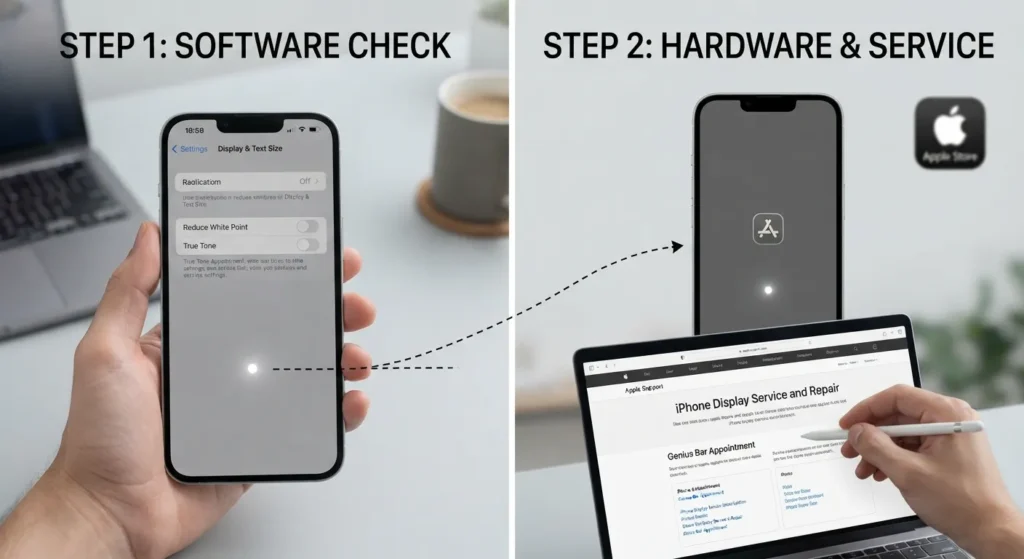
If the spot remains, check whether your iPhone is still under warranty or covered by AppleCare. Apple Support provides official display troubleshooting steps. You can also book a Genius Bar appointment. They can check whether the issue is a covered display defect. Apple’s guide to display issues is available directly from Apple Support.
Bright Spot on Phone Screen Android: What to Check
On Android, the settings can vary by phone brand. Open Settings > Display and temporarily turn off Adaptive Brightness. This can help during testing. Samsung, Pixel, and other Android phones may also have built-in display diagnostic tools. These tools can test pixels, brightness, and the backlight.
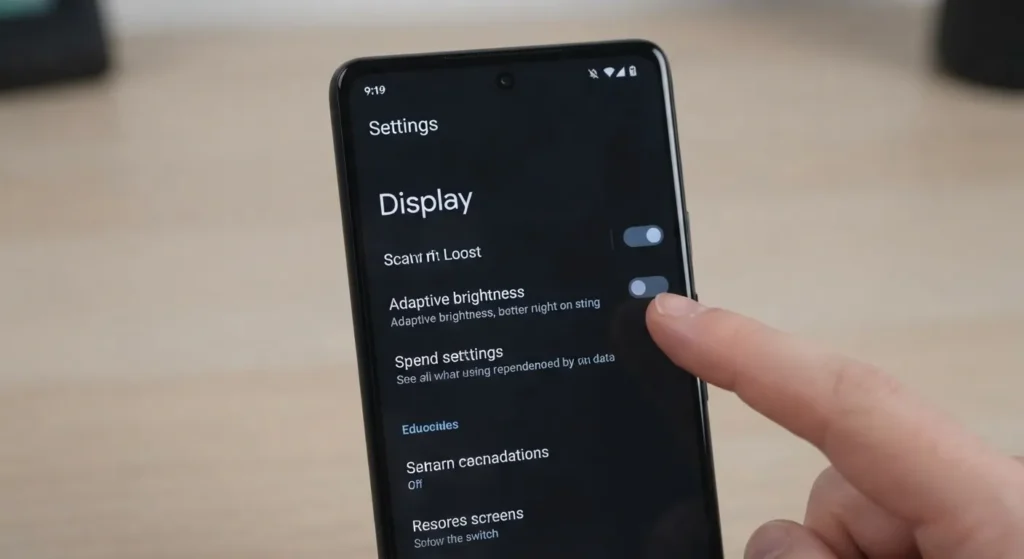
A white spot may be backlight bleed if your Android phone uses an LCD screen. AMOLED screens do not have a separate backlight. So, they cannot develop traditional backlight bleed. Google also provides troubleshooting steps for Pixel screen issues. These steps can help determine if your screen needs repair.
A bright spot on an Android phone can vary slightly by manufacturer. However, the main causes are usually the same.
Samsung Galaxy
Samsung’s AMOLED displays are prone to panel-related bright spots after pressure or impact. Samsung Members’ built-in diagnostic tool can run a screen test directly on the device to help confirm the issue.
Google Pixel
Pixel phones with OLED panels can develop similar spots after drops or heavy pressure. Google’s support pages include steps for testing the display and checking repair eligibility.
Other Android Phones
Most other Android manufacturers offer a diagnostic mode in their settings menu, often labeled as a display test or hardware test. Checking the manufacturer’s support site for the exact steps is worth doing since menu names vary between brands.
When the Bright Spot Means Hardware Damage
A few patterns point clearly toward a hardware problem rather than something fixable through settings:
- The spot is present immediately after restarting the phone and in Safe Mode.
- It appeared right after a drop, exposure to heat, or contact with water.
- It’s getting larger, darker, or more visible over time.
- It’s accompanied by flickering, lines, or a section of the touchscreen that doesn’t respond.
Any of these suggest the display panel itself, or the connection between the panel and the logic board, has been affected.
How to Fix a Bright Spot on a Phone Screen
The correct way to fix a bright spot depends on what caused it. Software troubleshooting is appropriate when the issue may be related to rendering, while physical display damage normally requires hardware repair.
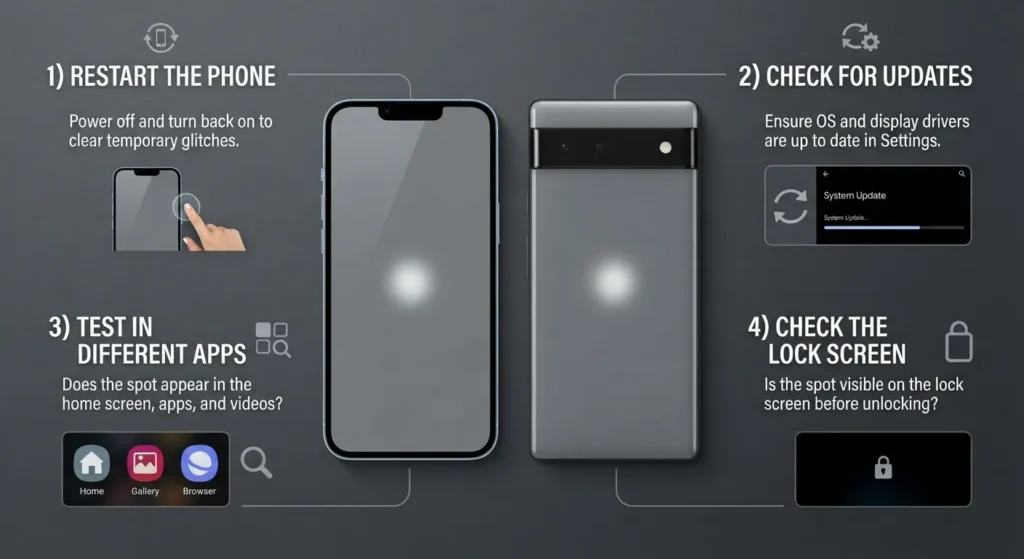
Restart Your iPhone or Android Phone
Start with a normal restart. It is simple, safe, and can eliminate temporary display glitches.
After restarting, open a white background and check the affected area again. If the spot disappears, continue using the phone normally while monitoring the display.
If the bright spot remains unchanged, move on to the next diagnostic step rather than repeatedly restarting the device.
Check for Software or Display Updates
An operating system problem can occasionally affect how content is rendered on a screen. Check whether your iPhone or Android phone has a pending system update.
Install updates through the phone’s normal settings rather than downloading firmware from unofficial websites.
However, software updates are unlikely to repair a physically damaged LCD panel or OLED display. If the bright area remains fixed regardless of the application, hardware is more likely.
Test the Phone in Different Apps
Open several applications and compare the affected area.
If the bright spot only appears in one application, the problem may be related to that app or its content. If it appears on the home screen, lock screen, settings, and different apps, the display itself may have a problem.
This is a useful way to separate a software-specific display problem from a physical screen issue.
Check Whether the Spot Is Visible on the Lock Screen
The lock screen provides another useful diagnostic test.
Turn the screen off and back on, then inspect the same location. If the spot is visible before you open any applications, it is less likely to be caused by an individual app.
A persistent spot on the home screen, lock screen, and multiple applications usually points toward the display hardware.
Can a Bright Spot on an OLED Screen Be Fixed?
A bright spot on an OLED screen can sometimes indicate physical damage to the panel, a defective pixel, or another display-related failure.
Unlike an LCD, an OLED panel does not rely on a conventional backlight behind the entire screen. Each pixel produces its own light. Therefore, a bright spot on an OLED should not automatically be described as a backlight problem.
If the spot is a tiny, permanently illuminated pixel, it may be a stuck pixel. If it is a larger bright area that appears after pressure or impact, physical panel damage is more likely.
Try software troubleshooting if you are unsure of the cause. However, a persistent physical defect usually needs professional inspection or screen replacement.
Can You Fix White Spots Without Replacing the Screen?
Sometimes, but it depends entirely on the cause.
You may be able to fix white spots without replacing the display. This is possible if the cause is a dirty screen, damaged protector, software issue, or a specific app.
Physical damage is different. If the LCD layers, OLED panel, or internal display parts are damaged, software cannot usually repair them. The damaged area may require professional repair or screen replacement.
Avoid pressing, rubbing, heating, or massaging the affected area. These methods are sometimes suggested online as ways to repair pixels, but applying additional pressure can cause more screen damage.
If the bright spot appeared after a drop or pressure, it may indicate screen damage. If it stays in the same place, professional screen repair is the safer option.
When Should You Replace the Phone Screen?
Consider professional repair when the bright spot is persistent, increasing in size, or accompanied by other display problems.
A repair may be appropriate if:
- The spot appeared after a drop or impact.
- There is visible cracking or physical damage.
- The bright area is getting larger.
- Touch input is failing near the affected area.
- Multiple bright spots are appearing.
- The screen has lines, flickering, or discoloration.
- The display is separating from the phone.
- The phone has experienced liquid exposure.
- The spot remains after basic software checks.
If the phone is relatively new, check the manufacturer’s warranty or service options before paying for a replacement. A manufacturing defect may be handled differently from accidental damage.
Do not open the phone yourself unless you have the appropriate tools and repair experience. Opening the device can damage display cables, seals, or other components and may affect warranty coverage.
How Can You Prevent White Spots on Your Phone Screen?
You cannot prevent every display defect, but careful handling can reduce the risk of pressure and impact-related problems.
Use a suitable protective case and avoid placing heavy objects on the phone. Do not keep the device where it can be repeatedly squeezed or bent.
Keep the phone away from excessive moisture and avoid using it in conditions outside the manufacturer’s recommended operating range.
When cleaning the display, use a soft cloth and avoid applying excessive force. If you use a screen protector, replace it when it becomes badly damaged rather than continuing to use one with cracks or lifted sections.
Preventing unnecessary pressure is particularly important because a small white patch may become a permanent display defect after the underlying screen layers are damaged.
Why Is There a Bright Spot on My Phone Screen but No Crack?
A visible crack is not required for internal display damage to occur.
A phone can experience pressure or impact that damages internal screen layers while leaving the outer glass looking normal. This is one reason a bright spot can appear even when there is no obvious crack.
LCD panels are particularly sensitive to pressure because their internal layers work together to control how light reaches your eyes. Damage underneath the surface can therefore produce a bright area without creating a visible break in the glass.
If the spot appeared immediately after pressure, bending, or an impact, physical damage is a strong possibility.
When to Get Professional Repair
Consider professional repair if the bright spot is new or getting larger. Also seek help if you notice lines, flickering, discoloration, or touch problems. Have the phone inspected if the spot appeared after a drop, pressure, water exposure, or physical damage.
Before paying for a repair, check your warranty or insurance coverage. A display defect may qualify for a replacement if the device is covered and there is no accidental damage.
If the phone is out of warranty, an authorized repair center can test the display and its connections. In some cases, the problem may be a loose or damaged display connector rather than the entire screen, which can make the repair simpler and less expensive.
Frequently Asked Questions
Here are some commonly asked questions about Bright spot on screen.
Conclusion
Most bright spots on a phone screen usually have one of four causes. They may come from the backlight, display panel, pressure damage, or a stuck pixel. A screen protector can also reflect light and look like a bright spot.
First, remove the case and screen protector. Then test the screen on solid black and white backgrounds. Restart the phone and check the spot again. These simple tests can help identify the cause within a few minutes.
If the spot appeared after a drop, heat, or water exposure, it may indicate screen damage. If it gets worse over time, stop troubleshooting. Have the display checked by the manufacturer or a professional repair center.