
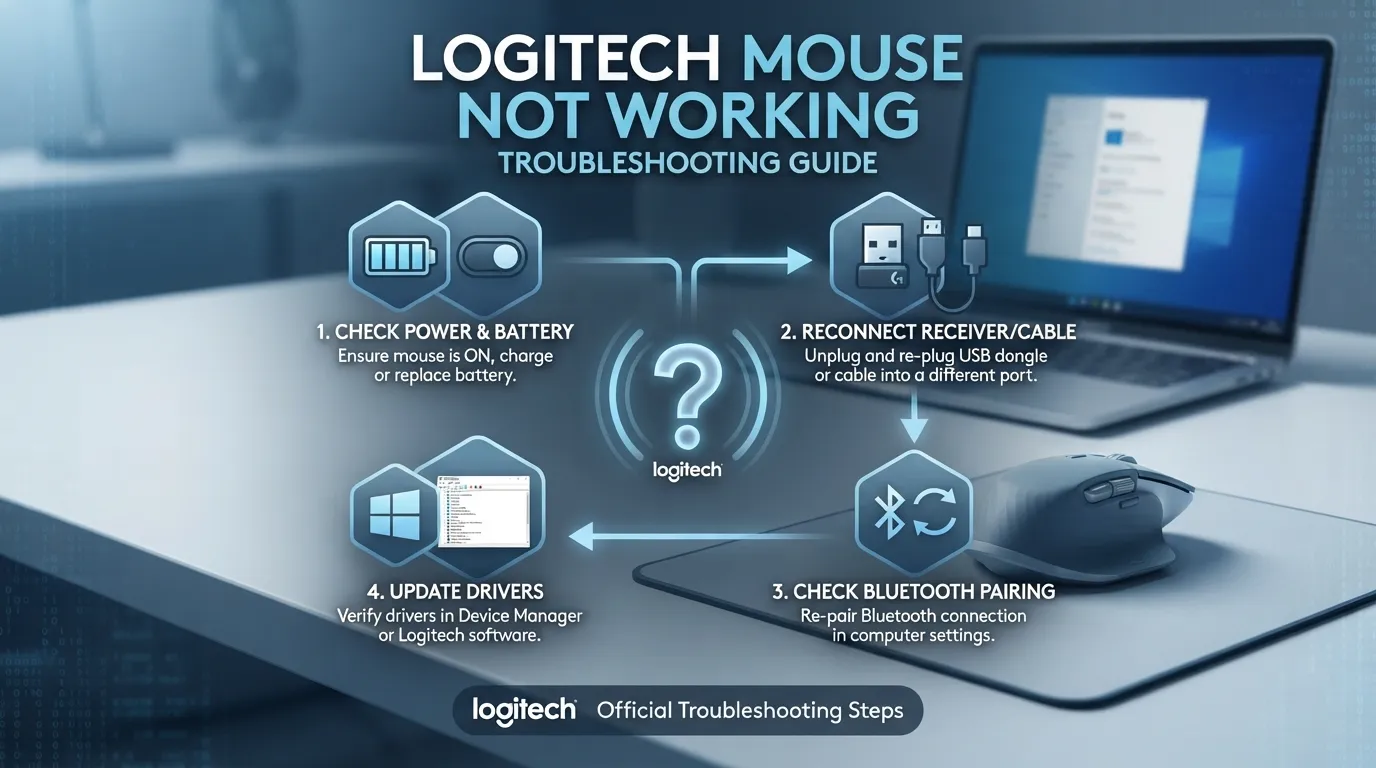
Logitech Mouse Not Working: Troubleshooting Guide
If your Logitech mouse is not working, the problem is often caused by something simple such as a weak battery, lost wireless connection, incorrect Bluetooth pairing, or a USB receiver issue. A driver or Windows problem can also prevent the mouse from responding, especially after an update.
The quickest way to find the cause is to troubleshoot in the right order. Start with power and physical connections, then check the receiver or Bluetooth pairing, followed by Windows settings, drivers, Logitech software, and hardware. This approach helps you determine whether the problem is with the Logitech mouse itself, its connection, or your computer. If you are troubleshooting on a laptop, a failing external mouse becomes an urgent issue if you are already dealing with the laptop touchpad working issues.
Why Is My Logitech Mouse Not Working?
A Logitech mouse can stop responding for several reasons, and the correct fix depends on how your mouse connects to the computer.
Common causes include:
- Dead or weak battery
- Mouse switched off
- Loose or incompatible USB receiver
- Lost wireless pairing
- Bluetooth connection problems
- Faulty USB port
- USB hub or docking station interference
- Wireless interference
- Windows driver problems
- Outdated Logitech software or firmware
- Dirty sensor or unsuitable surface
- Physical damage to the mouse or receiver
Logitech itself identifies low battery, receiver connection, USB hubs, moving the receiver between computers, metal surfaces, and radio-frequency interference as common causes of wireless mouse connection problems.
Before changing drivers or installing software, determine which type of connection your mouse uses:
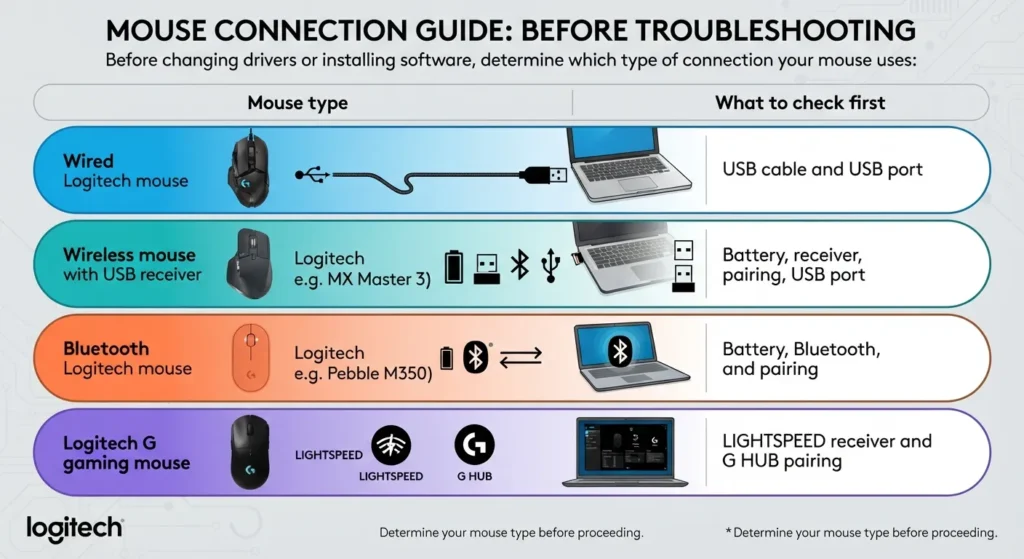
| Mouse type | What to check first |
| Wired Logitech mouse | USB cable and USB port |
| Wireless mouse with USB receiver | Battery, receiver, pairing, USB port |
| Bluetooth Logitech mouse | Battery, Bluetooth, and pairing |
| Logitech G gaming mouse | LIGHTSPEED receiver and G HUB pairing |
This distinction is important because Bluetooth troubleshooting will not fix a receiver-based mouse, and reinstalling a Windows driver will not help if the mouse simply has a dead battery.
1. Check the Mouse Power and Battery
Start with the simplest possibility: the mouse may not have enough power.
For a wireless Logitech mouse, turn the power switch off, wait a few seconds, and turn it back on. Check whether the indicator light comes on. If your model uses replaceable batteries, install a fresh battery and make sure it is facing the correct direction.
For a rechargeable Logitech mouse, charge it sufficiently before continuing. If possible, test it while connected with its charging cable if your model supports wired operation.
Also check the battery compartment for a loose connection, corrosion, or a battery tab that was never removed.
Why this matters: a weak battery can cause anything from complete failure to an intermittent cursor, delayed movement, or frequent disconnects. Logitech recommends checking battery power before reconnecting a wireless mouse.
If the mouse still has no sign of power after trying a known-good battery or sufficient charge, move to the next step.
2. Reconnect the USB Receiver or Cable
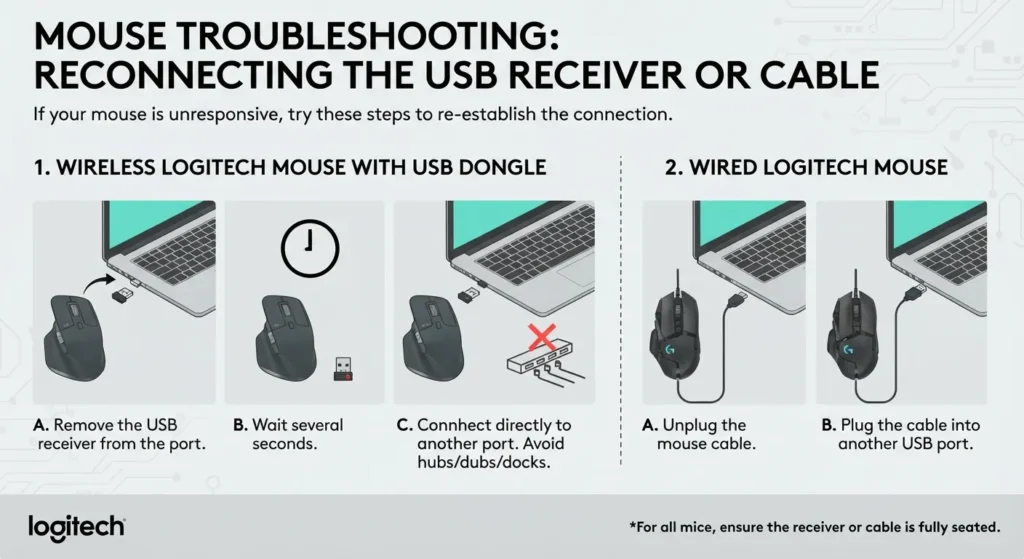
If you have a Logitech wireless mouse with a USB dongle or receiver, disconnect the receiver from the computer.
Wait several seconds, then connect it directly to another USB port. Avoid connecting the receiver through a USB hub, KVM switch, docking station, or extender while troubleshooting.
For a wired Logitech mouse, unplug the cable and connect it to another USB port.
Windows also recommends disconnecting and reconnecting USB devices and trying another USB port when a mouse does not respond.
Why this matters: the USB port, hub, or receiver connection can be the actual problem rather than the mouse. If changing ports makes the mouse work, the original port or intermediary device deserves further investigation.
3. Re-Pair the Logitech Wireless Mouse
A Logitech wireless mouse can appear powered on while still being disconnected from its receiver.
First, make sure the receiver is connected directly to the computer. Then check the bottom of the mouse for a connection, Easy-Switch, or pairing button. The exact procedure varies by model.
For compatible Logitech devices, Logitech’s connection software can help establish the connection again. Some models use a Logi Bolt receiver, while others use Unifying or another receiver technology. These systems are not automatically interchangeable, so do not assume that any Logitech USB dongle will work with your mouse.
If your mouse uses a compatible receiver, follow Logitech’s official pairing instructions:
Logitech Mouse Connection and Pairing Support
For a Logitech G gaming mouse using a LIGHTSPEED receiver, G HUB includes a Device Pairing Tool that can be used to pair compatible devices and replacement receivers.
4. Move the Receiver and Reduce Wireless Interference
If the mouse works but the cursor keeps freezing, skipping, or becoming delayed, the connection may be suffering from interference.
Try these changes:
- Move the mouse closer to the receiver.
- Plug the receiver into a different USB port.
- Avoid placing the receiver behind a desktop computer case when possible.
- Keep wireless speakers, phones, and other electronics away from the receiver.
- Avoid testing the mouse on a large metal surface.
- Remove unnecessary USB hubs or extenders from the connection.
Logitech specifically recommends moving the receiver closer to the mouse and keeping other electrical devices away from it when a wireless mouse frequently stops working.
If the cursor becomes stable after moving the receiver, the mouse itself may be fine. The issue is more likely signal quality or interference.
5. Reconnect a Logitech Mouse Through Bluetooth
If your Logitech mouse connects through Bluetooth rather than a USB receiver, troubleshoot the Bluetooth connection separately.
On Windows 11:
- Open Settings.
- Select Bluetooth & devices.
- Find your Logitech mouse.
- If it is listed but does not respond, remove the device.
- Turn the mouse off and back on.
- Put the mouse into pairing mode using its Bluetooth or connection button.
- Select Add device and choose Bluetooth.
- Select your Logitech mouse from the available devices.
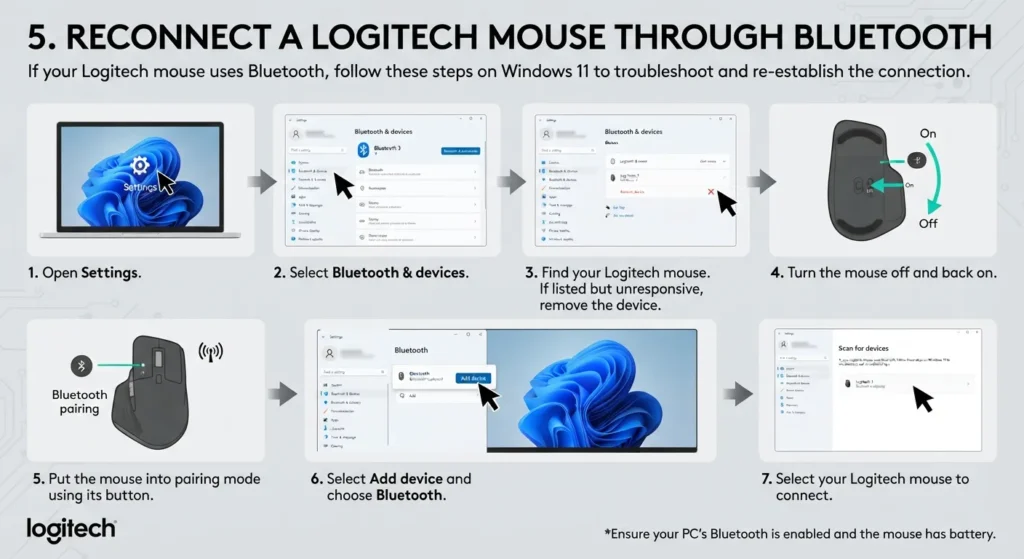
The exact pairing button and procedure depend on the Logitech model.
Microsoft notes that Bluetooth problems can occur when the device is not in pairing mode, is out of range, has a low battery, or is affected by driver, service, or update problems.
For older Logitech models, the Bluetooth interface may look different, so use the instructions for your specific mouse model when necessary.
6. Test the Mouse on Another Computer
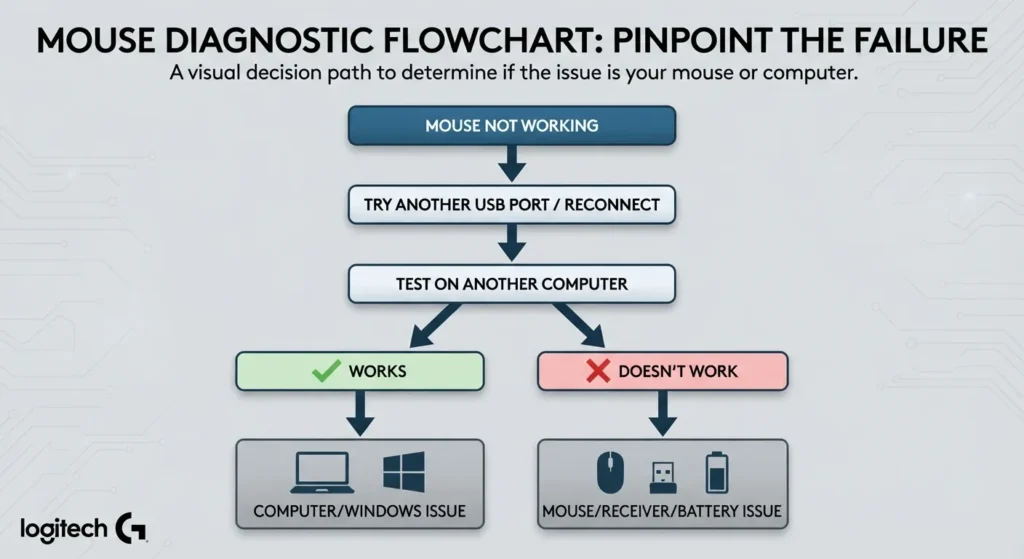
This is one of the most useful diagnostic steps because it separates a mouse problem from a computer problem.
Connect the Logitech mouse to another computer and test its basic functions.
If the mouse works on another computer
The Logitech mouse is probably functional. Focus on the original computer’s:
- USB ports
- Bluetooth settings
- Device drivers
- Windows configuration
- USB power management
- Docking station or hub
- Receiver connection
If the mouse does not work on another computer
The problem is more likely related to the mouse, battery, cable, receiver, sensor, or internal hardware.
Microsoft recommends testing a non-working mouse on another PC to help determine whether the device itself needs replacement.
My Top Tip: Do this test before spending time reinstalling multiple drivers. A mouse that fails on two different computers is unlikely to be fixed by changing a Windows setting on the first computer.
7. Check Logitech Mouse Drivers in Device Manager
If the Logitech mouse works elsewhere but not on your Windows PC, inspect Device Manager.
Press Windows + X, then select Device Manager.
Look under categories such as:
- Mice and other pointing devices
- Human Interface Devices
- Bluetooth
- Universal Serial Bus controllers
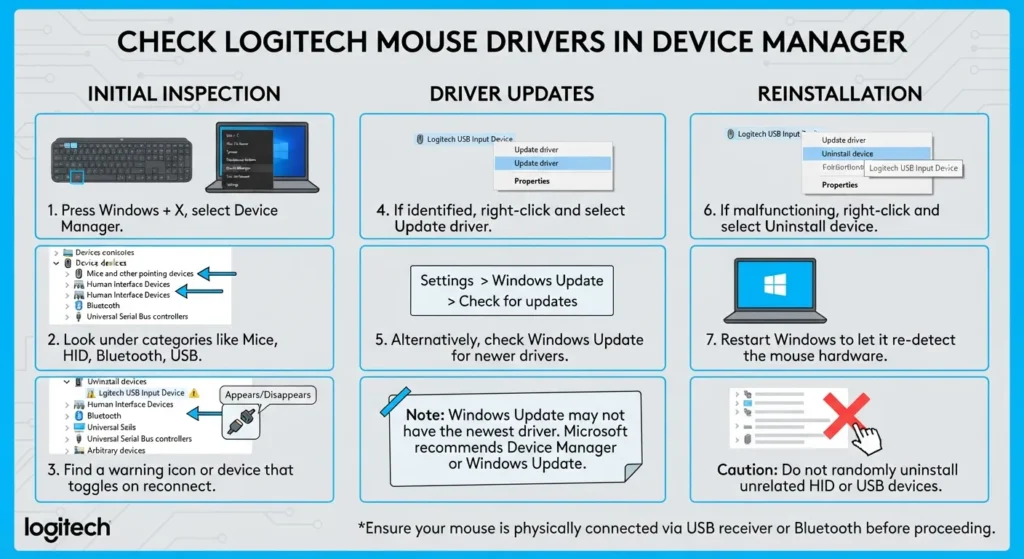
Look for a warning icon or a device that appears or disappears when you reconnect the mouse or receiver. If you identify the relevant device, right-click it and select the Update driver.
You can also check Windows Update:
Settings > Windows Update > Check for updates
Windows may not always provide a newer mouse driver, so the absence of an available update does not automatically mean the driver is working correctly. Microsoft recommends using Windows Update or Device Manager rather than relying on questionable third-party driver updater programs.
If the device is clearly malfunctioning, you can also uninstall the relevant mouse device from Device Manager and restart Windows. Windows should normally detect the hardware again after reboot.
Do not randomly uninstall unrelated HID or USB devices because doing so can disable other input hardware.
8. Update Logitech Software or Firmware
Logitech software can be useful when Windows recognizes the mouse but the device still has connection or configuration problems.
Depending on the device, you may use:
- Logi Options+ for supported productivity mice
- Logitech G HUB for supported Logitech G gaming mice
- Logitech’s official support tools for compatible receivers and devices
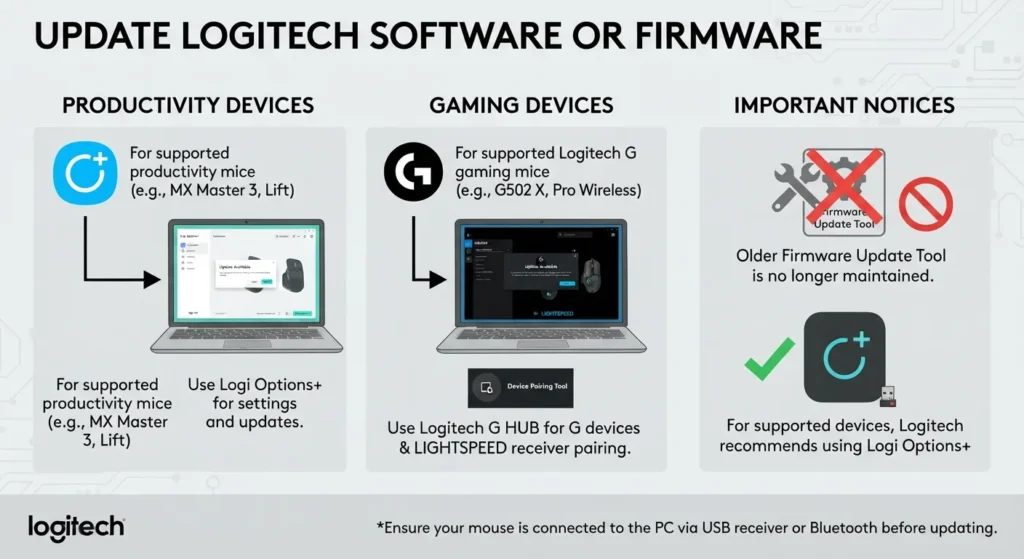
For Logitech G devices, G HUB provides a Device Pairing Tool for compatible LIGHTSPEED receivers.
One important point is that Logitech’s older Firmware Update Tool is no longer maintained for supported devices. Logitech recommends using Logitech Options+ for supported devices instead.
Only download Logitech software from the official Logitech website or its support pages.
Logitech Support and Downloads
9. Clean the Sensor and Check the Surface
If the Logitech mouse powers on and the cursor moves but tracking is inaccurate, the problem may not be related to Windows at all.
Turn the mouse over and inspect the optical sensor. Dust, hair, or debris around the sensor can interfere with tracking.
Clean the sensor gently with a soft, lint-free cloth. Also check the mouse feet and remove visible debris.
Then test the mouse on a clean, non-reflective surface or a suitable mouse pad.
This is particularly useful when the cursor:
- Moves inconsistently
- Skips across the screen
- Stops tracking temporarily
- Moves only when the mouse is lifted
- Works on one surface but not another
Do not immediately assume that erratic cursor movement means the Logitech mouse is defective. Sensor and surface problems can produce similar symptoms.
10. Determine Whether the Mouse Has a Hardware Problem
If you have checked the battery, connection, pairing, USB ports, Windows drivers, software, and sensor, it is time to consider hardware failure.
Hardware becomes more likely when:
- The mouse does not work on multiple computers.
- A wired mouse has a damaged or intermittent cable.
- The wireless receiver is not detected on another computer.
- The mouse has visible physical damage.
- Buttons no longer register correctly.
- The scroll wheel fails despite the rest of the mouse working.
- The mouse repeatedly disconnects even with a fresh battery and proper receiver placement.
- The sensor does not respond on different surfaces.
For receiver-related problems, Logitech recommends testing the receiver on another computer and checking whether Windows recognizes it. If it remains unrecognized, the receiver itself may be the problem.
If the mouse is still under warranty, check Logitech’s warranty options before attempting to open or repair the device yourself.
Logitech Mouse Works but Keeps Stopping
A Logitech mouse that works for a few minutes and then stops needs slightly different troubleshooting from a mouse that never works.
Start by checking:
- Battery level.
- Receiver placement.
- Wireless interference.
- USB hub or docking station.
- Different USB port.
- Windows USB power settings.
- Logitech software and firmware.
- Mouse behavior on another computer.
Logitech lists low battery, receiver placement, wireless interference, USB power settings, and potential hardware problems among possible causes of connection drops and delays.
If the mouse disconnects only on one computer, investigate that computer. If it disconnects everywhere, the mouse or receiver is more likely responsible.
How to Tell Whether the Problem Is the Mouse or Computer
Use this quick diagnostic table:
| What happens | Most likely direction |
| Mouse has no power light | Battery, charging, switch, or hardware |
| Mouse works after changing USB ports | USB port or connection issue |
| Mouse works without a hub | Hub, dock, or KVM issue |
| Bluetooth mouse disappears from Windows | Bluetooth or pairing problem |
| Mouse works on another PC | Original computer or Windows issue |
| Mouse fails on multiple PCs | Mouse, battery, or receiver problem |
| Cursor skips but buttons work | Sensor, surface, or interference |
| Mouse repeatedly disconnects | Battery, interference, receiver, USB power, or hardware |
| Logitech G mouse loses LIGHTSPEED pairing | Receiver pairing or G HUB issue |
This diagnostic approach is more useful than immediately reinstalling drivers because it first establishes where the failure is occurring.
When Should You Replace a Logitech Mouse?
Replacement makes sense when the mouse consistently fails on multiple computers and basic connection checks have already been completed.
Before replacing it, make sure you have ruled out:
- Dead battery
- Incorrect battery installation
- Lost pairing
- Wrong receiver
- Faulty USB port
- USB hub or dock
- Bluetooth problem
- Wireless interference
- Windows driver issue
If the receiver has been lost or damaged, check whether your specific Logitech model supports a compatible replacement receiver. Receiver technologies differ, so buying a random Logitech dongle is not necessarily a solution.
For a mouse that is still covered by warranty, contacting Logitech support may be preferable to attempting an internal repair.
Frequently Asked Questions
Here are some most commonly asked questions about logitech mouse
Conclusion
When a Logitech mouse is not working, start with the basics instead of immediately reinstalling drivers. Check the battery and power switch, reconnect the USB receiver or cable, try another USB port, and remove hubs or docking stations from the connection. For Bluetooth models, remove the old pairing and connect the mouse again.
If those steps fail, test the mouse on another computer. This single test can help determine whether you should troubleshoot Windows or investigate the mouse and receiver. From there, check Device Manager, Windows updates, Logitech software, and firmware. If the mouse fails everywhere after these checks, hardware failure or a defective receiver may be the next issue to address.
